
How to Automatically Restart a Docker Container on Boot on Glows.ai
This tutorial explains how to create a systemd boot service on a Glows.ai GPU instance running Ubuntu that waits until both the GPU driver and the Docker service are ready before automatically restarting a specified Docker container — avoiding startup failures caused by the driver or service not being ready yet.
This tutorial covers:
- Prerequisites (confirming the GPU environment, creating a test container)
- Creating the startup script
- Setting script execute permissions
- Creating the systemd boot service
- Reloading the systemd configuration
- Enabling the service to start on boot
- Testing the service manually
- Checking whether setup succeeded / checking service status
Introduction to Systemd
Systemd is the init system on Linux — at boot, it's responsible for starting the various services in order.
systemctl is the tool used to issue commands to systemd: starting, stopping, or restarting a service, or checking a service's current status, are all done through systemctl talking to systemd.
This tutorial sets up a systemd boot service that:
- Runs with root privileges
- Waits for Ubuntu to fully boot
- Waits for the NVIDIA GPU driver to finish initializing (confirmed via
nvidia-smi) - Waits for the Docker service to finish starting
- Automatically runs:
docker restart myServer
Prerequisites (GPU Instance Specific — Check Before You Begin)
Before moving on to the steps below, confirm the following three items on your GPU instance:
1. After starting a GPU instance, confirm that nvidia-smi displays GPU information correctly
Why: the script later in this tutorial checks nvidia-smi to decide whether to continue, so you need to confirm the GPU and driver are installed correctly first. This tutorial uses docker and systemctl commands, which are currently only supported on VM-type instances.
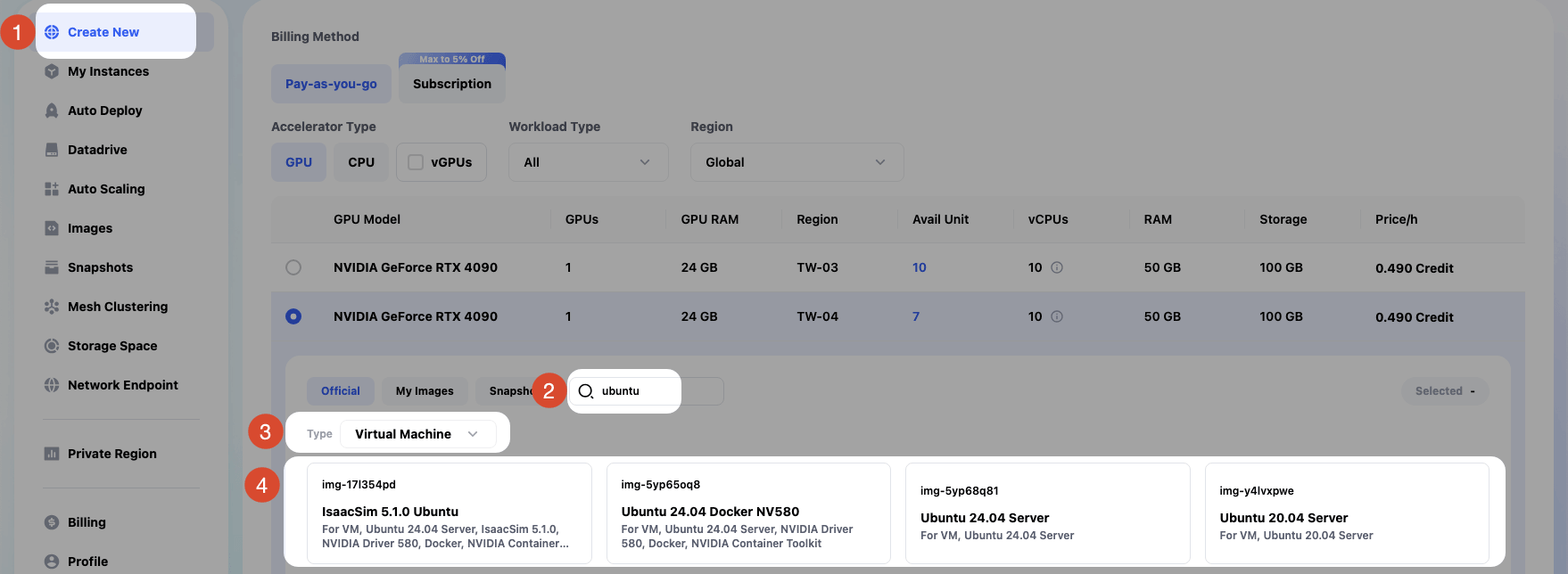
- Click
Create Newto start creating an instance, search for Ubuntu, and select a VM-type machine. Choose an Ubuntu image and create the instance.
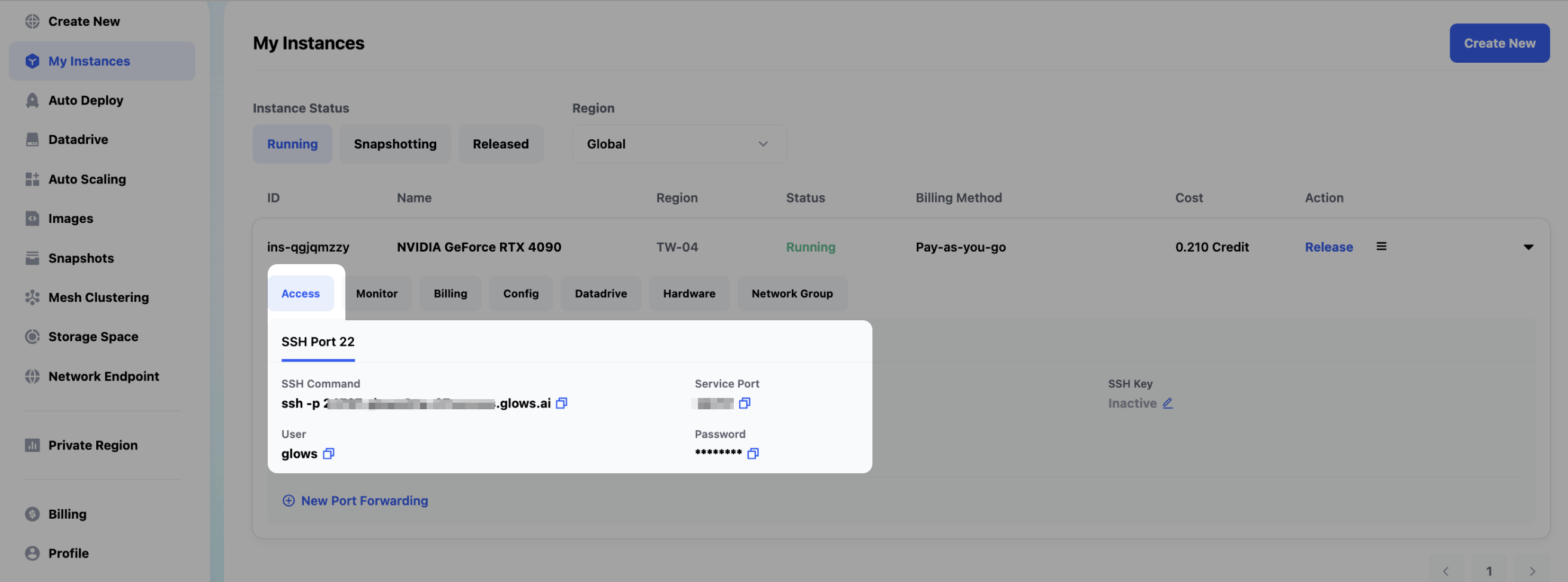
- Once the instance is running, on the instance page click
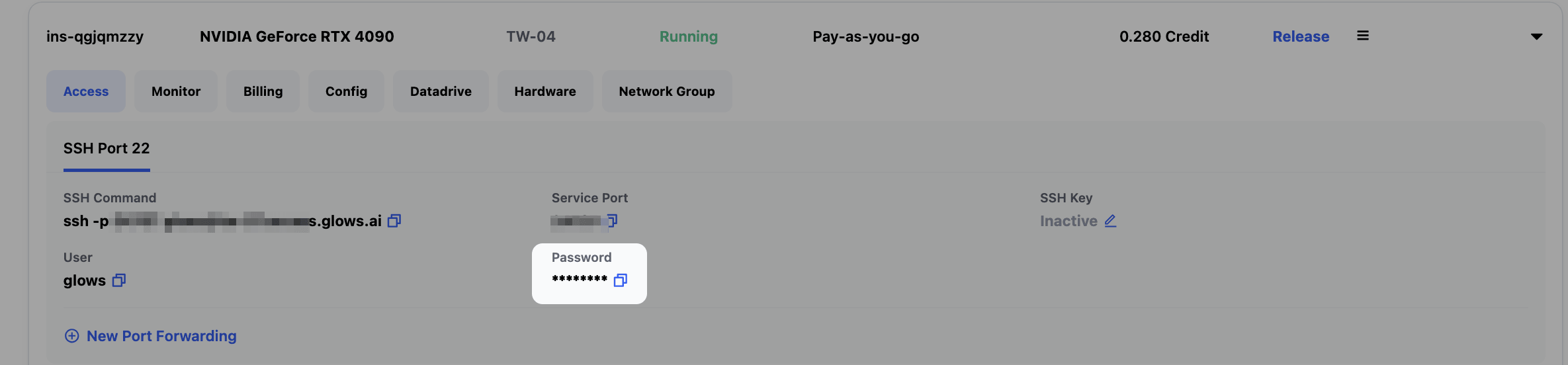
Access>SSH Port 22> copy theSSH Command> and connect to the instance usingPassword.
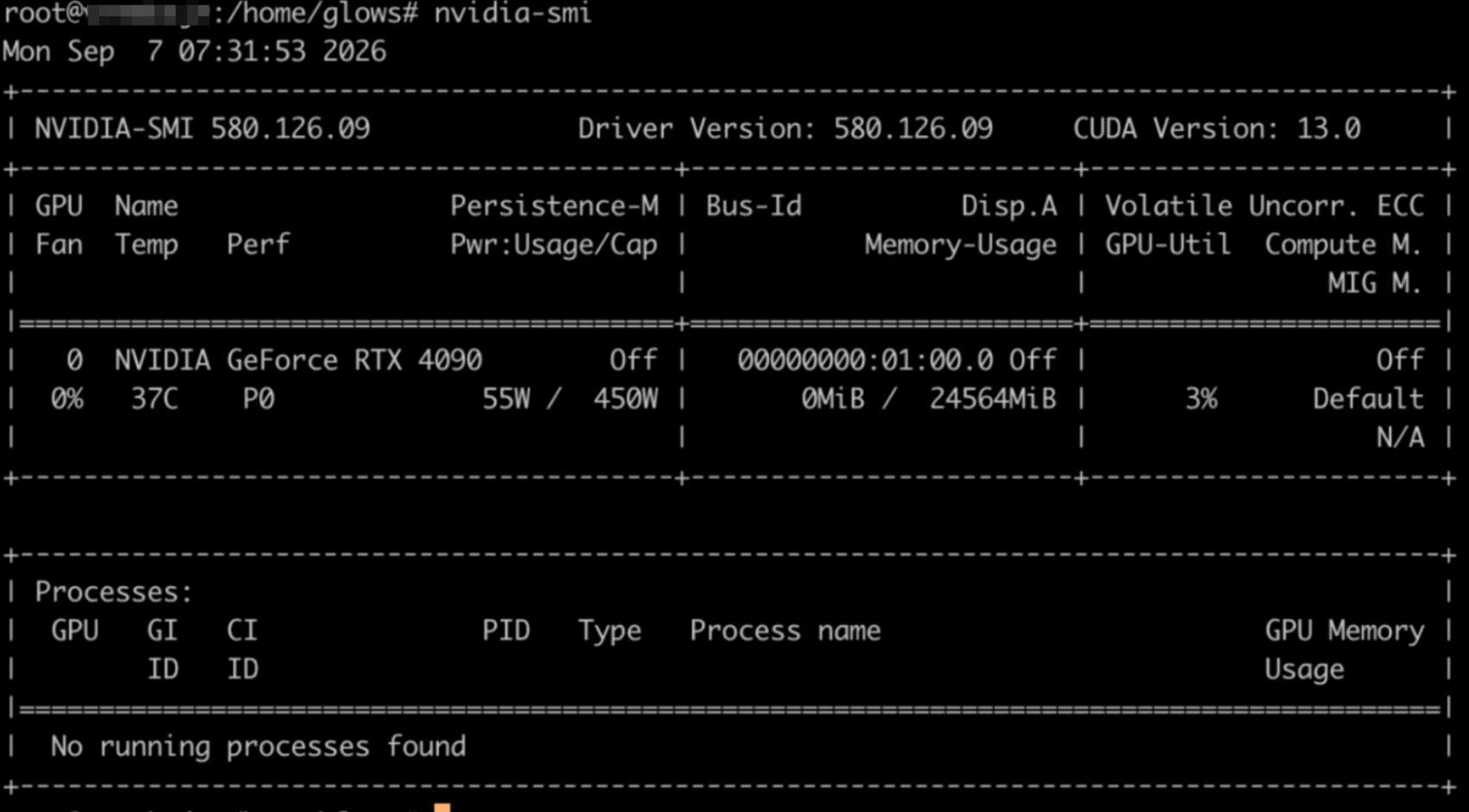
- After connecting to the instance, run
nvidia-smito confirm the GPU and driver are installed correctly.
2. Switch to the root user
If your instance isn't already logged in as root, run sudo su to switch to the root user. This avoids later docker/systemctl commands failing due to insufficient permissions.
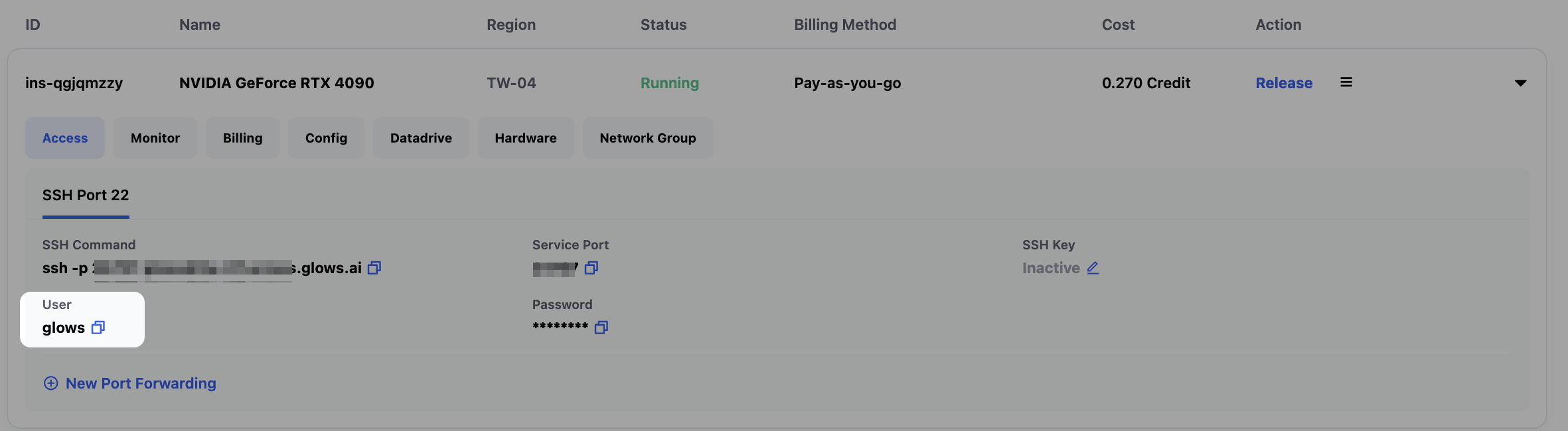
- Before switching, the user is still
glows, notroot.
- After running
sudo su, you'll be asked for a password — get it from the instance details page underAccess>SSH Port 22>Password.

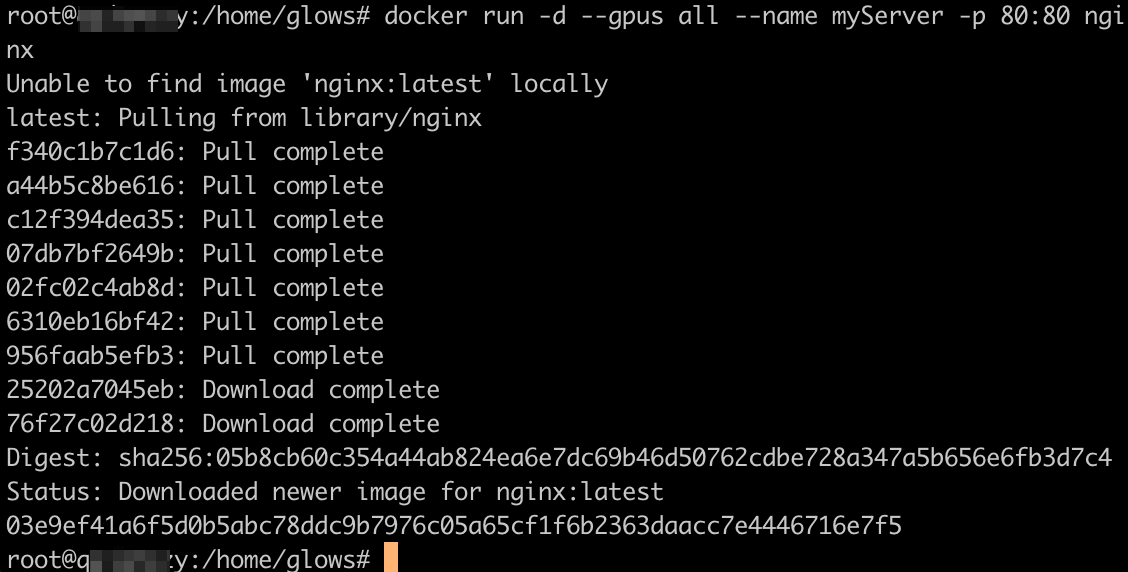
3. Create the myServer (example name) container to be auto-restarted
docker restart only works on containers that already exist. In this example, we use nginx to create a minimal server. If myServer doesn't exist yet on this machine, the boot script's docker restart myServer step will fail later.
1. Create the Startup Script
Create the script file:
sudo nano /usr/local/bin/restart-myserver.sh

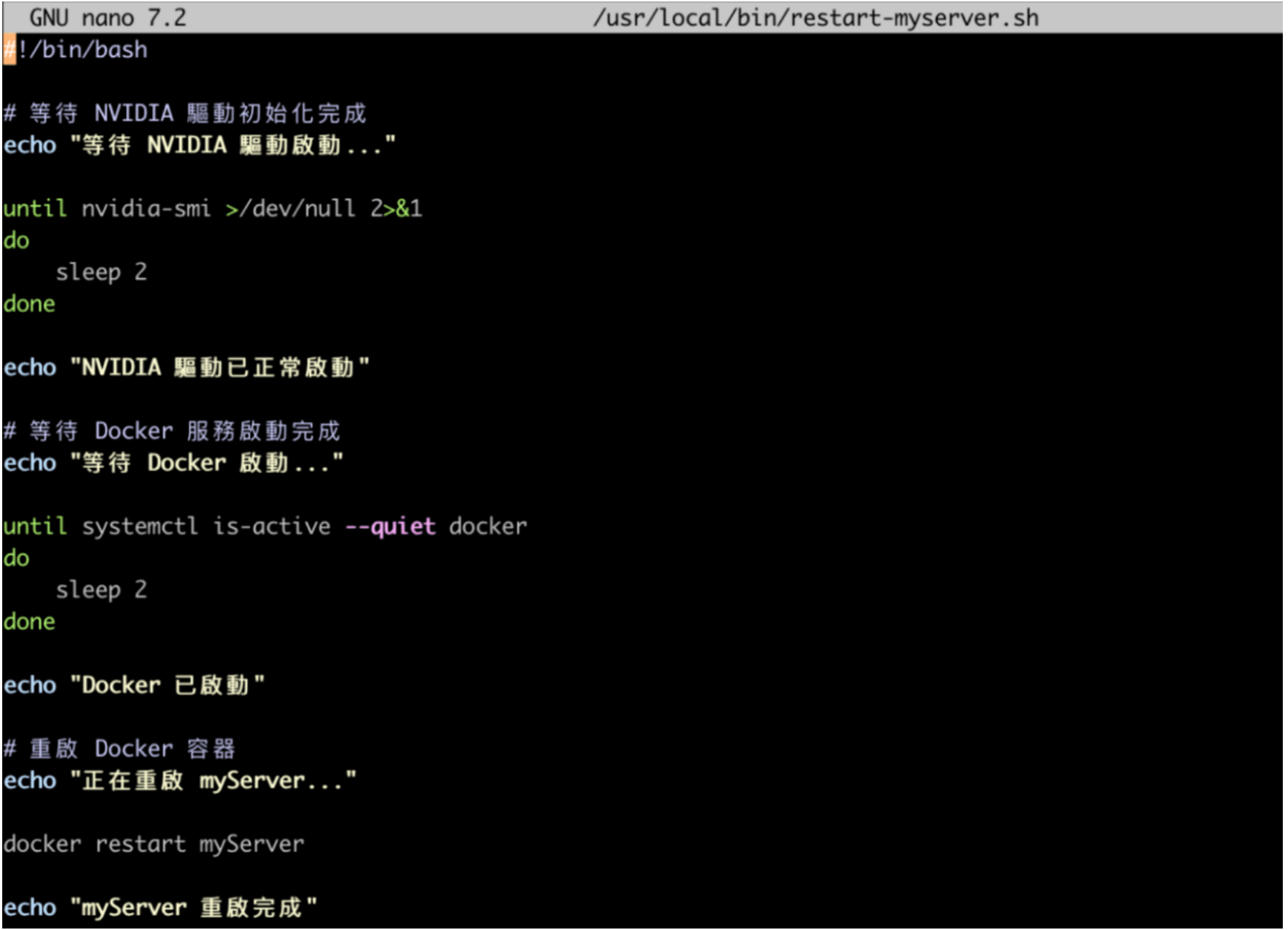
Add the following content:
#!/bin/bash

# Wait for the NVIDIA driver to finish initializing
echo "Waiting for the NVIDIA driver..."

until nvidia-smi >/dev/null 2>&1
do
    sleep 2
done

echo "NVIDIA driver is ready"

# Wait for the Docker service to finish starting
echo "Waiting for Docker to start..."

until systemctl is-active --quiet docker
do
    sleep 2
done

echo "Docker is ready"

# Restart the Docker container
echo "Restarting myServer..."

docker restart myServer

echo "myServer restarted"
until nvidia-smi >/dev/null 2>&1; do sleep 2; done: a polling loop that repeatedly checksnvidia-smiuntil the GPU driver is confirmed ready before continuing.until systemctl is-active --quiet docker; do sleep 2; done: checks whether the Docker service has started.docker restart myServer: the script's main purpose — restart the specified container.- Execution flow: wait for the GPU driver -> wait for Docker to start -> restart the specified container (
docker restart myServer)
After editing, use:
Ctrl + O
Enter
Ctrl + X
to save and exit the editor.
2. Set Script Execute Permissions
Run:
sudo chmod +x /usr/local/bin/restart-myserver.sh
Newly created files on Linux are, by default, not executable — only readable and editable.
chmod +xmarks this script as executable, so it won't be rejected for insufficient permissions later when systemd (or you, manually) runs it. This command doesn't print any output.

3. Create the systemd Boot Service
Create the service file:
sudo nano /etc/systemd/system/restart-myserver.service

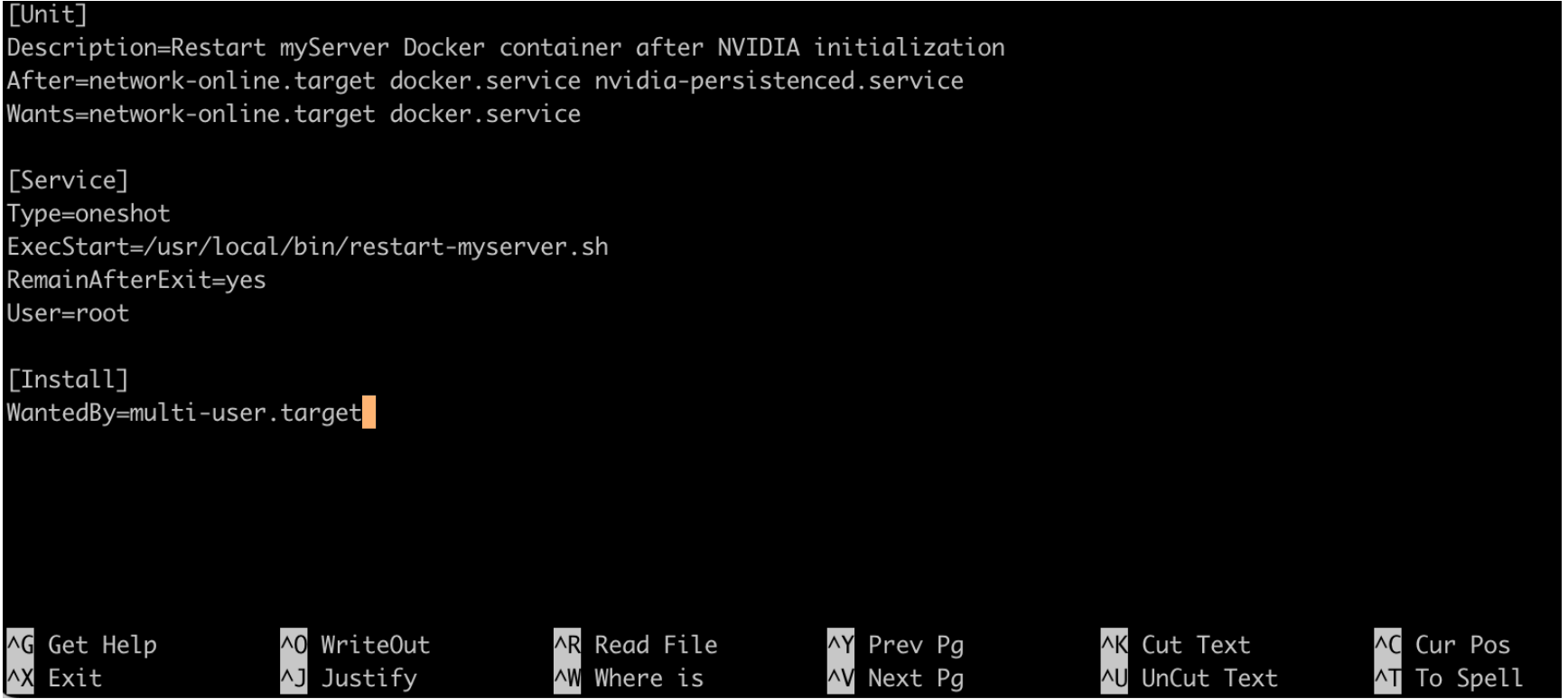
Enter:
[Unit]
Description=Restart myServer Docker container after NVIDIA initialization
After=network-online.target docker.service nvidia-persistenced.service
Wants=network-online.target docker.service

[Service]
Type=oneshot
ExecStart=/usr/local/bin/restart-myserver.sh
RemainAfterExit=yes
User=root

[Install]
WantedBy=multi-user.target
- [Unit]:
Description: a description of the service.After/Wants: specifies that the network, Docker, and NVIDIA services must be ready before this service starts.- [Service]:
Type=oneshot: this service runs once and then finishes.ExecStart: the path to the script to run.RemainAfterExit=yes: keeps the service shown as active after it finishes, so a successful run can be verified (otherwise it would show as inactive).User=root: the commands in this script require root privileges.- [Install]:
WantedBy=multi-user.targetbinds this service to start when the system boots into normal multi-user mode.
Save and exit.
4. Reload the systemd Configuration
Run:
sudo systemctl daemon-reload
daemon-reloadmanually tells systemd, "a service configuration file has been added or changed — please reread it." Without running this, systemd will keep using the old configuration, or won't know this new service exists — later commands may fail to find the service, or apply outdated settings.

5. Enable the Service to Start on Boot
Run:
sudo systemctl enable restart-myserver.service
enableregisters this service in the boot startup list, so systemd will run it automatically on every reboot.
You should see something like:
Created symlink /etc/systemd/system/multi-user.target.wants/restart-myserver.service

6. Test the Service Manually
You can test it right away without rebooting:
sudo systemctl start restart-myserver.service
enablein the previous step doesn't run the service immediately, sostartis used here to verify the script and the systemd service file are configured correctly.

Check the execution log:
journalctl -u restart-myserver.service -f
A normal run looks like:
Waiting for the NVIDIA driver...
NVIDIA driver is ready

Waiting for Docker to start...
Docker is ready

Restarting myServer...
myServer restarted
Check Whether Setup Succeeded
Check whether it's enabled:
systemctl is-enabled restart-myserver.service
If it returns
enabled, setup is complete.

Check Service Status
systemctl status restart-myserver.service
Active: active (exited)means the service ran successfully.

Boot Sequence Overview
Once set up, the boot sequence is as follows:
Ubuntu boots
    ↓
systemd starts
    ↓
Wait for network and Docker service
    ↓
Wait for NVIDIA driver to finish initializing
    ↓
Confirm nvidia-smi works
    ↓
Confirm Docker has started
    ↓
Run docker restart myServer
This avoids the following problems:
- The GPU driver hasn't loaded yet, causing CUDA containers to fail to start
- Docker has started, but the NVIDIA runtime isn't ready yet
- The boot process happens too quickly, causing container initialization errors
Recommended For
- Ubuntu 20.04 / 22.04 / 24.04
- NVIDIA GPU hosts
- Docker + CUDA container environments
- AI inference servers, GPU servers, or any environment that needs services automatically restored after boot
Contact Us
If you have any questions or suggestions while using Glows.ai, feel free to contact us via email, Discord, or Line.
Email: support@glows.ai
Discord: https://discord.com/invite/glowsai
Line: https://lin.ee/fHcoDgG