
How to Call a Glows.ai Local Model from Open WebUI via Auto Deploy
This tutorial explains how to launch a GPU-based local model on demand using Auto Deploy on Glows.ai, and connect it to an always-on Open WebUI interface — building a cost-efficient hybrid setup where a CPU instance stays on for the interface while the GPU model only spins up when needed.
This tutorial covers:
- Setting up Auto Deploy for a GPU instance
- Verifying that the local model launched by Auto Deploy is working
- Deploying an Open WebUI instance
- Adding an Auto Deploy connection in Open WebUI
- Testing a real conversation
Introduction to Auto Deploy
Auto Deploy is an on-demand deployment mechanism provided by Glows.ai: an instance automatically starts when a request arrives, and automatically releases after being idle for a set period. It's well suited for interfaces with unpredictable traffic, since it only occupies expensive GPU resources when inference is actually needed.
Open WebUI itself is a lightweight chat interface that can stay running without a GPU. It forwards conversation requests to an external API — in this case, the GPU model launched by Auto Deploy.
Let's walk through the full setup of this architecture on Glows.ai step by step.
Set Up Auto Deploy
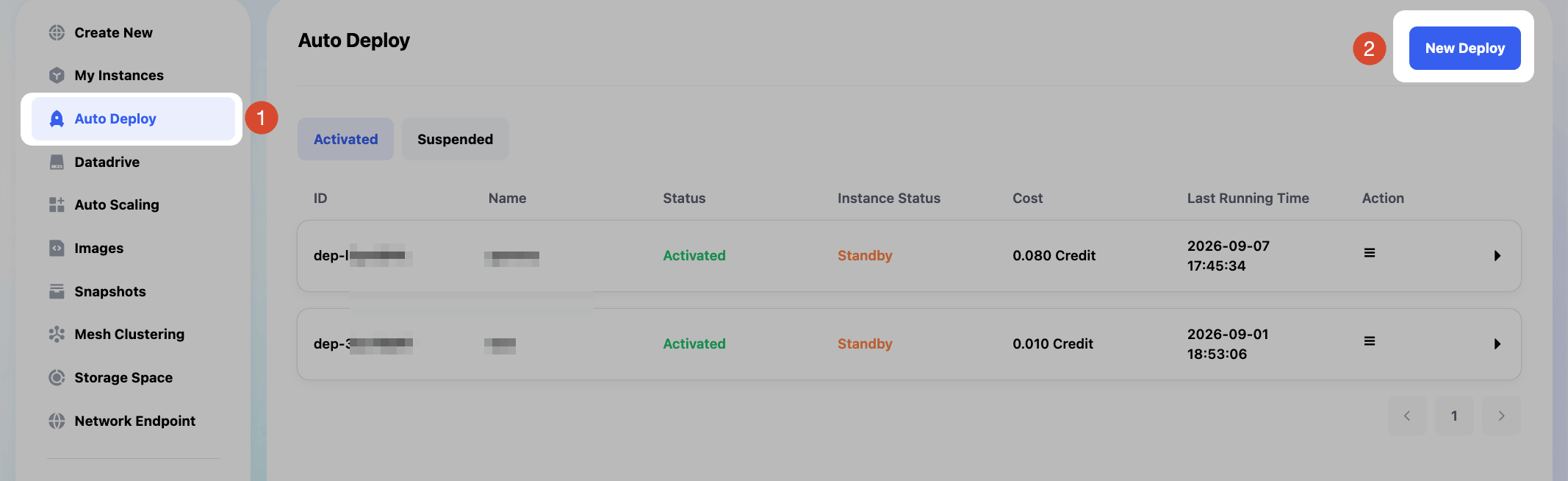
- Go to
Auto Deployin the left sidebar of the Glows.ai platform, then clickNew Deployin the top-right corner.
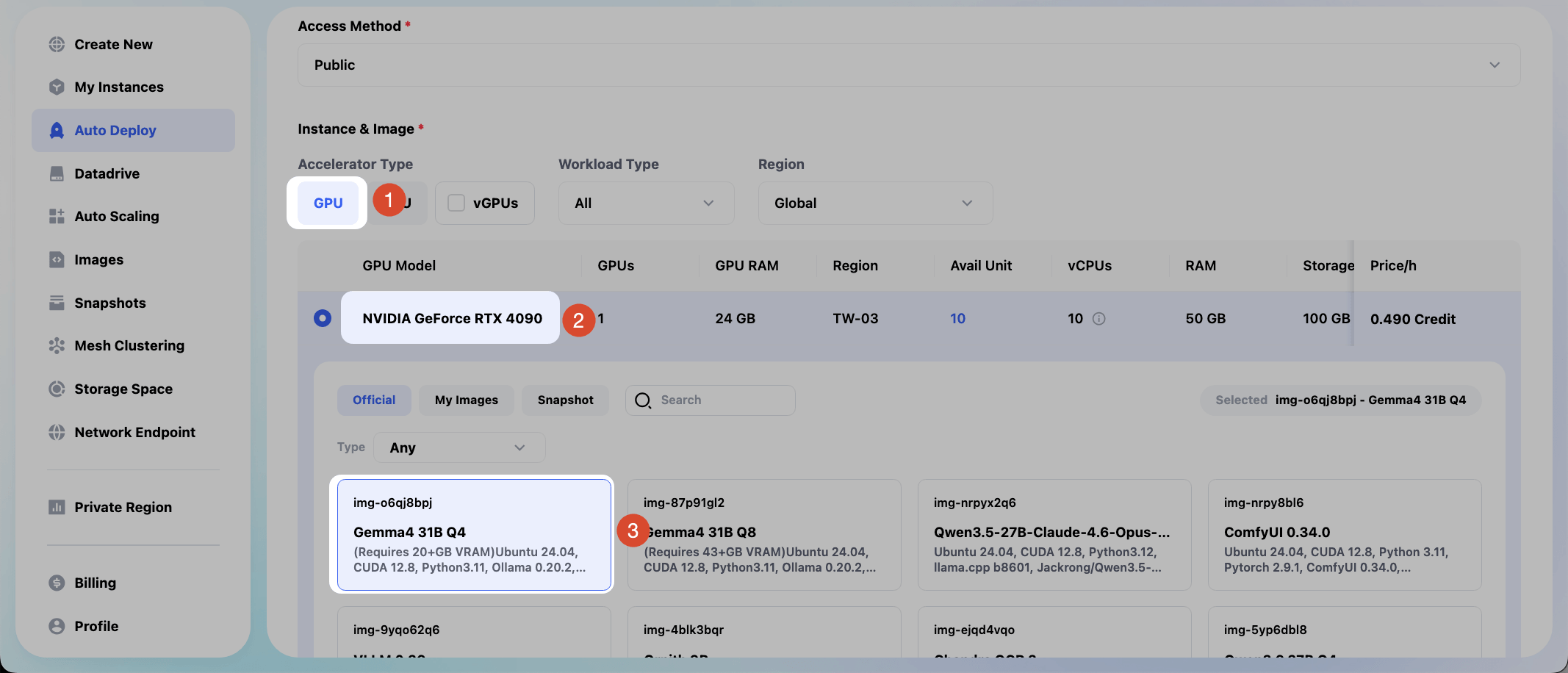
- Start creating the instance: choose GPU, select
NVIDIA GeForce RTX 4090as the model, and choose an image bundled with theGemma4 31B Q4model.
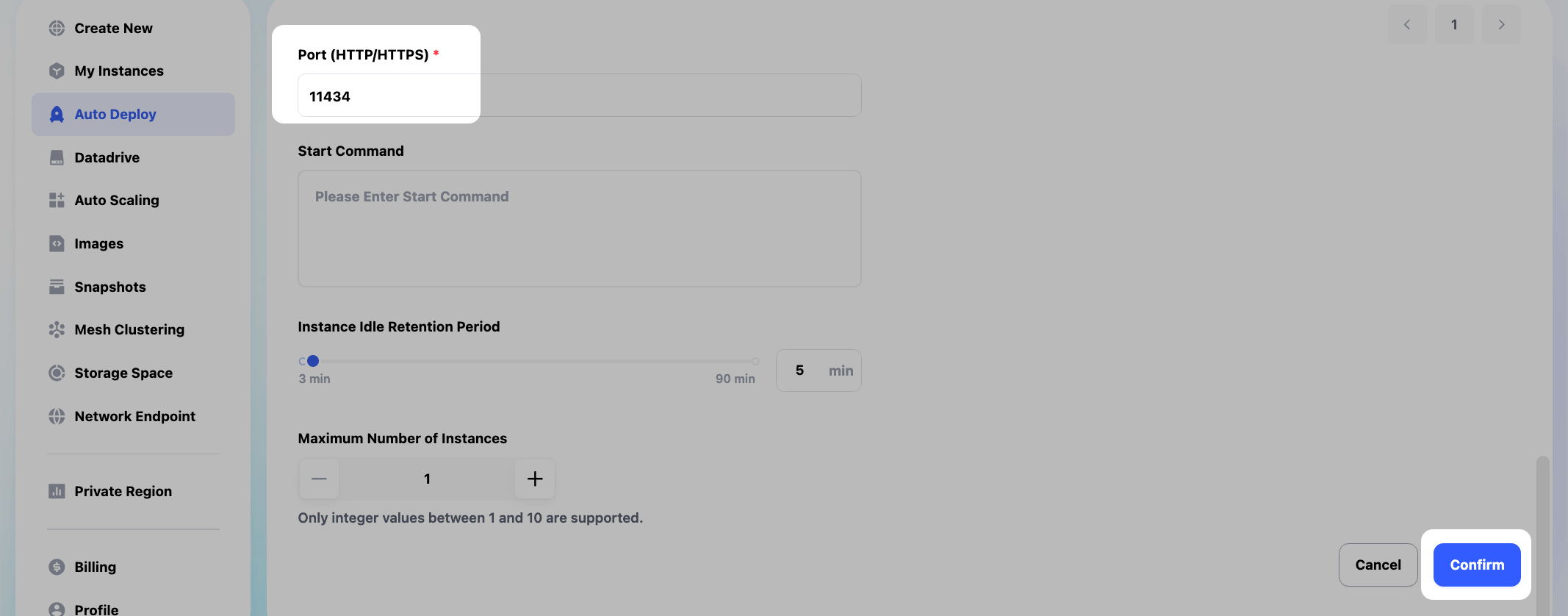
- Scroll down and enter
11434in the Port (HTTP/HTTPS) field (this is the default port Ollama listens on). ClickConfirmto create the Auto Deploy.
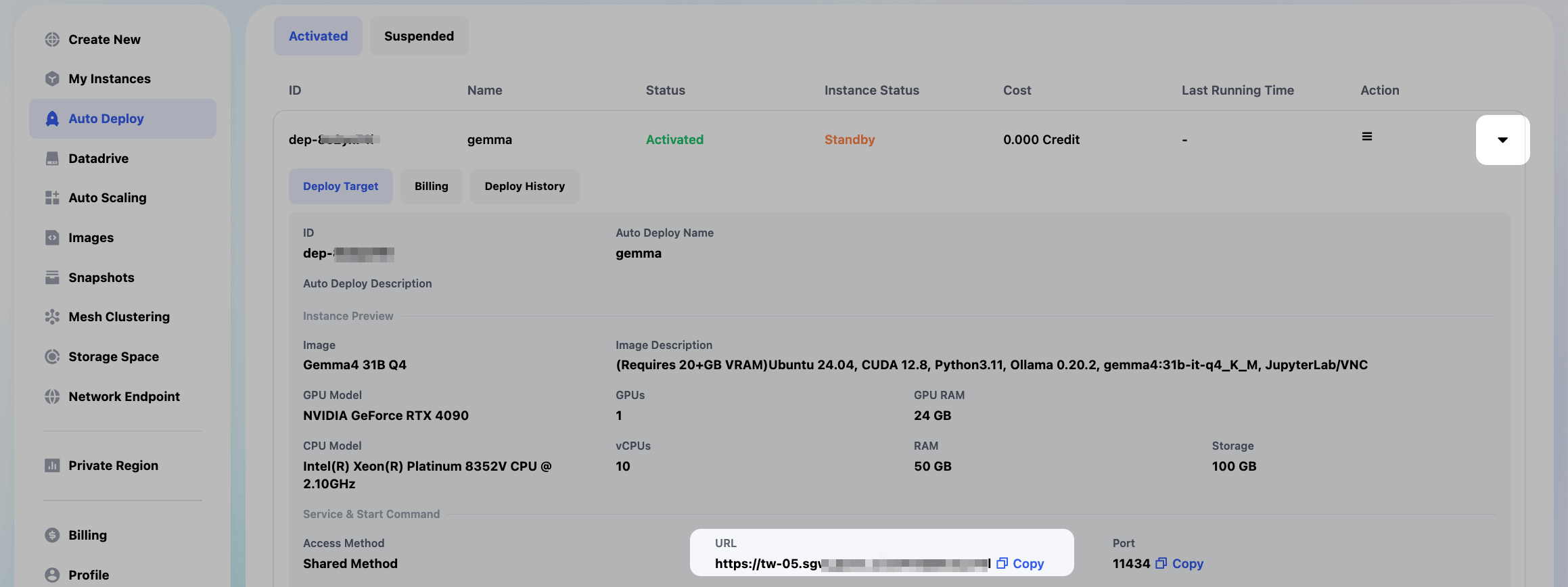
- In the Auto Deploy interface, click the instance you just created in the list, then expand it to see the fixed public URL field. Copy this URL.
Test Auto Deploy
- Before connecting to Open WebUI, it's a good idea to test the API directly from a terminal first, to confirm Auto Deploy is configured correctly.
Test whether the chat feature (Chat Completions API) works correctly from a terminal.
Run:
curl -X POST "your-AutoDeploy-URL/v1/chat/completions" \
  -H "Content-Type: application/json" \
  -d '{
    "model": "gemma4:31b-it-q4_K_M",
    "messages": [{"role": "user", "content": "hello"}]
  }'
As shown in the screenshot, this command successfully returns a reply from the local AI model running on the instance launched by Auto Deploy.
Note: be patient on the first call — sending a request through Auto Deploy is what triggers Glows.ai to start the GPU instance, and startup takes roughly ten to thirty seconds.

Note: the model name to put in the model field is gemma4:31b-it-q4_K_M for the image used in this tutorial.
If you're using an instance with a different image than this tutorial, the model name will differ. You can run curl "your-AutoDeploy-URL/api/tags" first to get the exact model name.

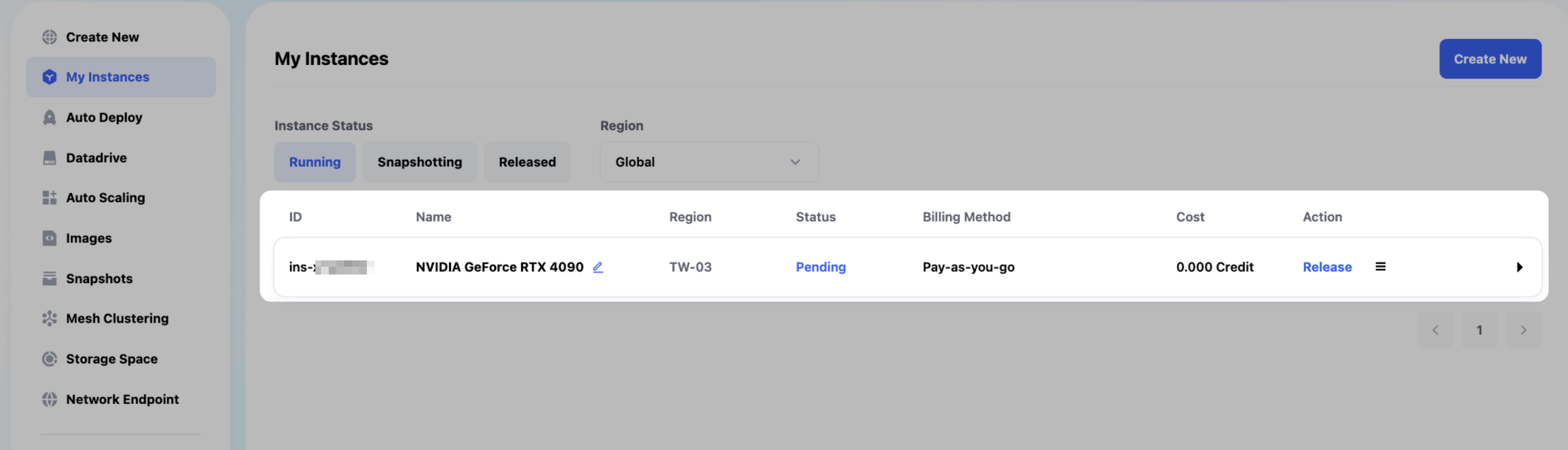
- In the Glows.ai instance interface, we can see that the instance was successfully started via Auto Deploy as a result of that command.
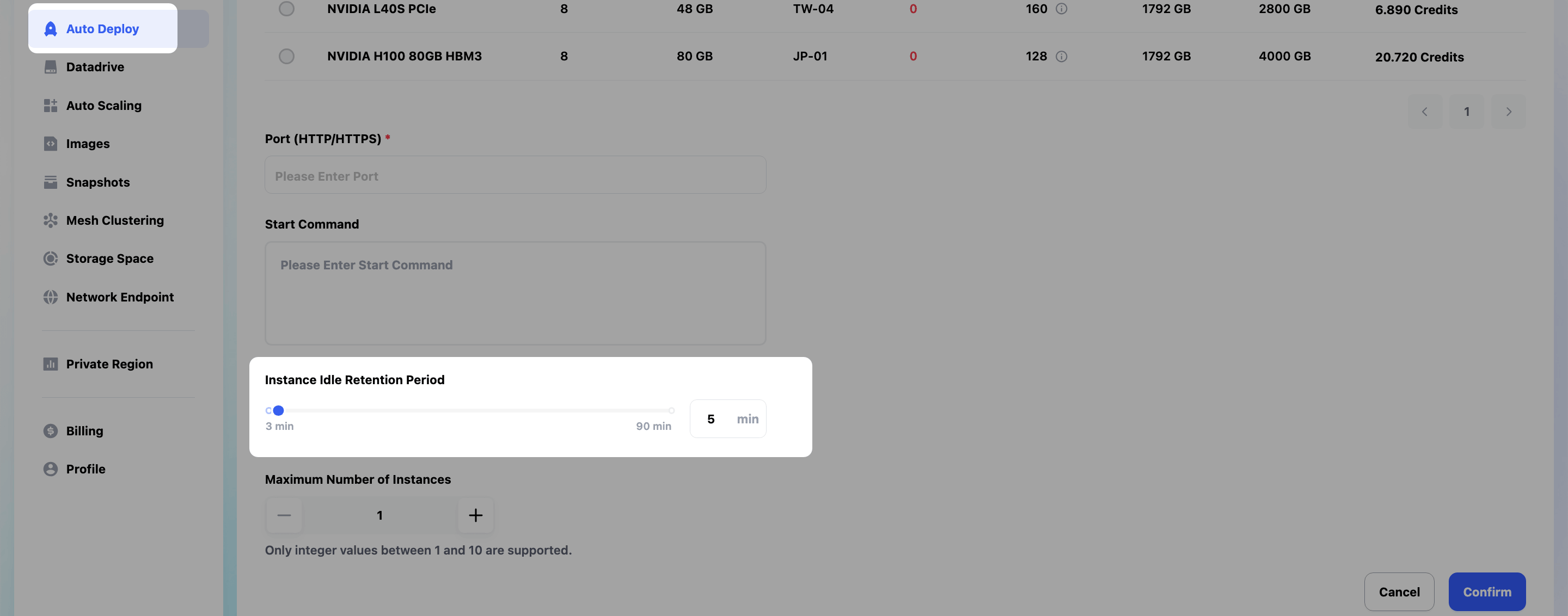
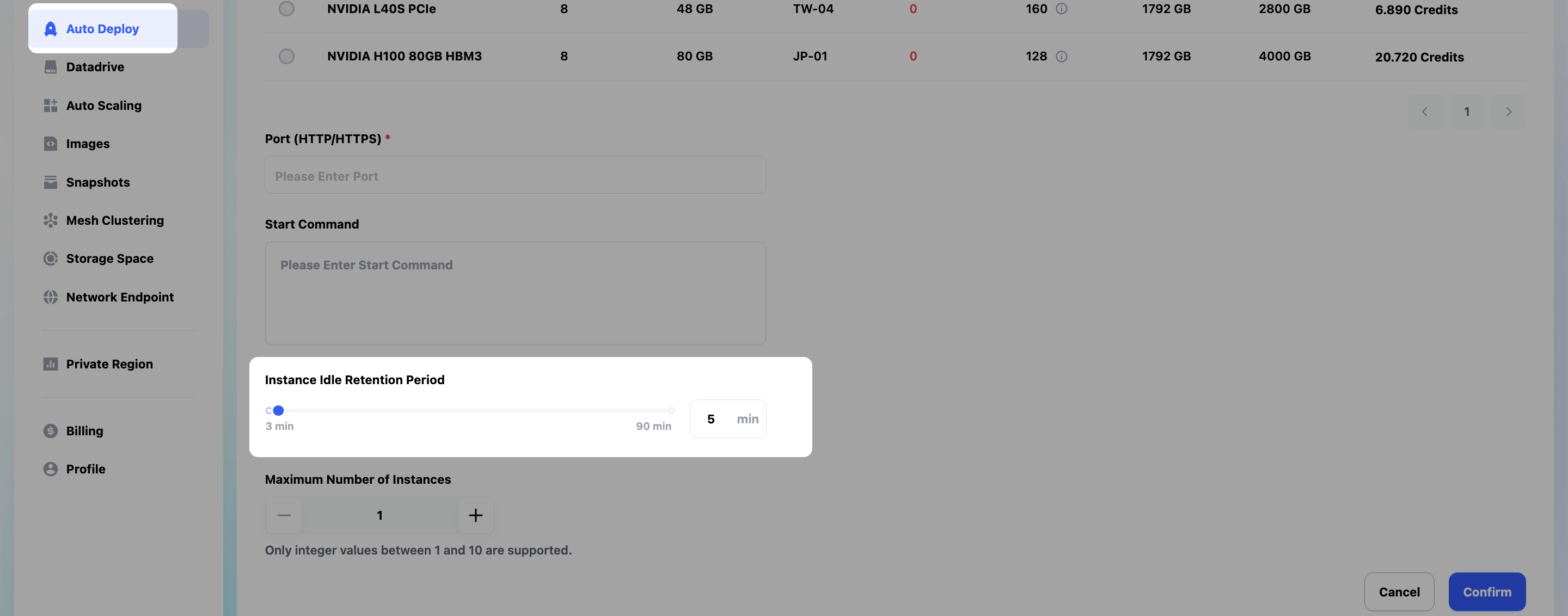
- Once the instance is running, it will automatically release if no new requests come in. You can set the auto-release delay when creating the Auto Deploy.
Set Up the Model Connection in Open WebUI
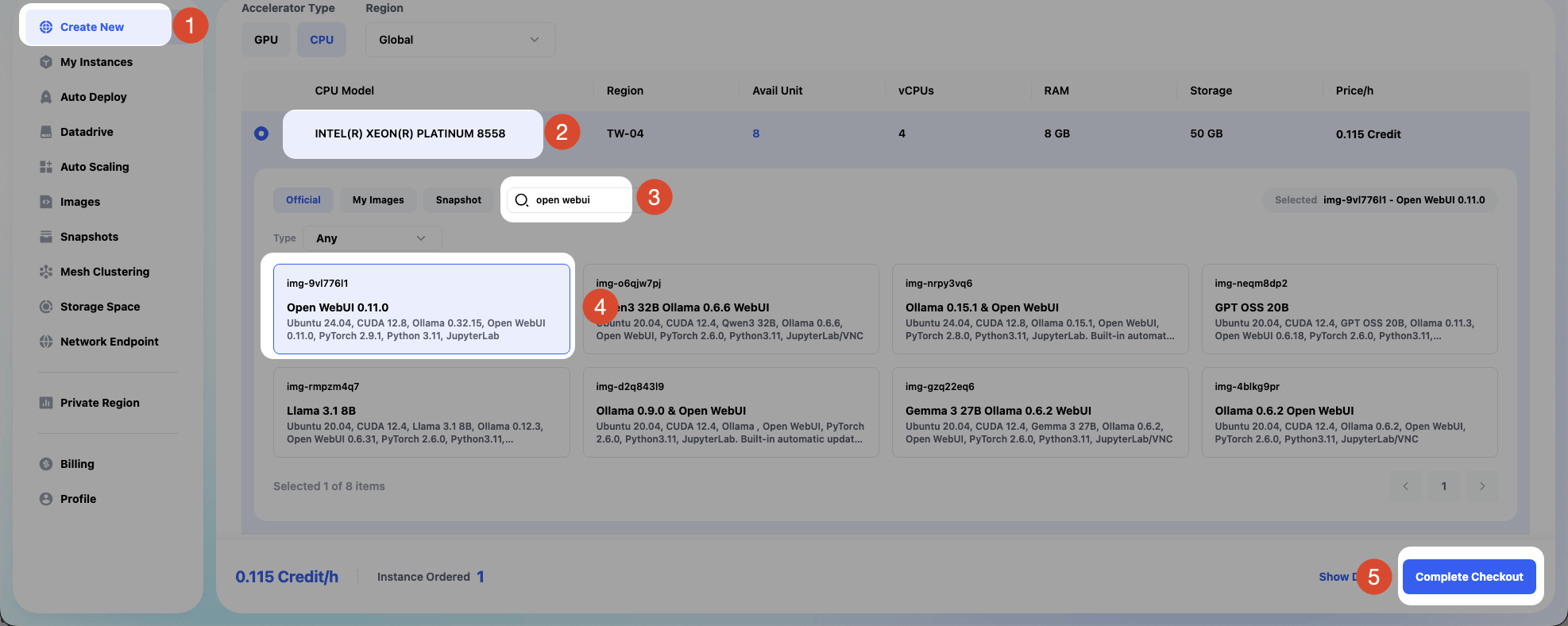
- On the instance creation page, create a new instance using an image that includes Open WebUI. You can type
open webuiin the search box to quickly find the Open WebUI image.
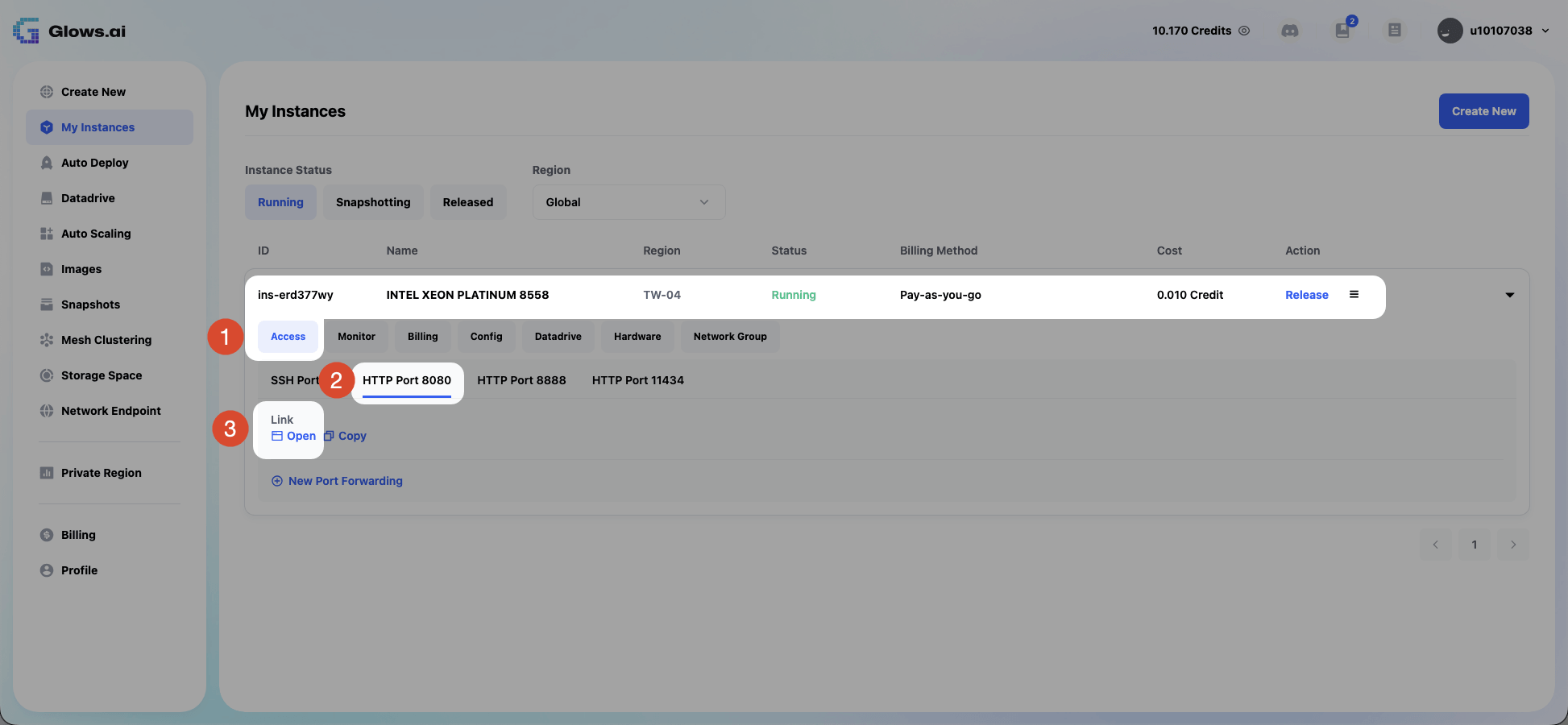
- Once the instance is running, go to
Access>HTTP Port 8080>Opento open the Open WebUI interface.
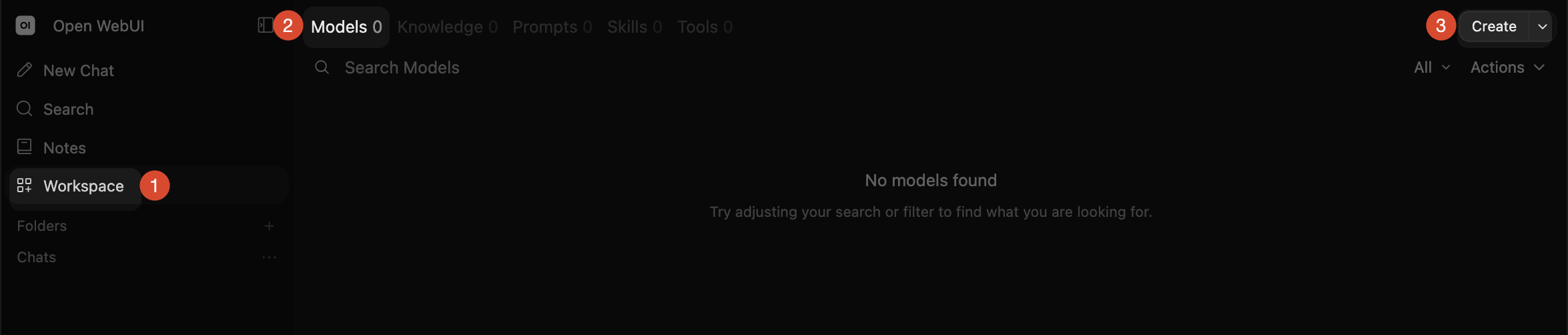
- In Open WebUI, click
Workspace>Models>Createto start creating a model.
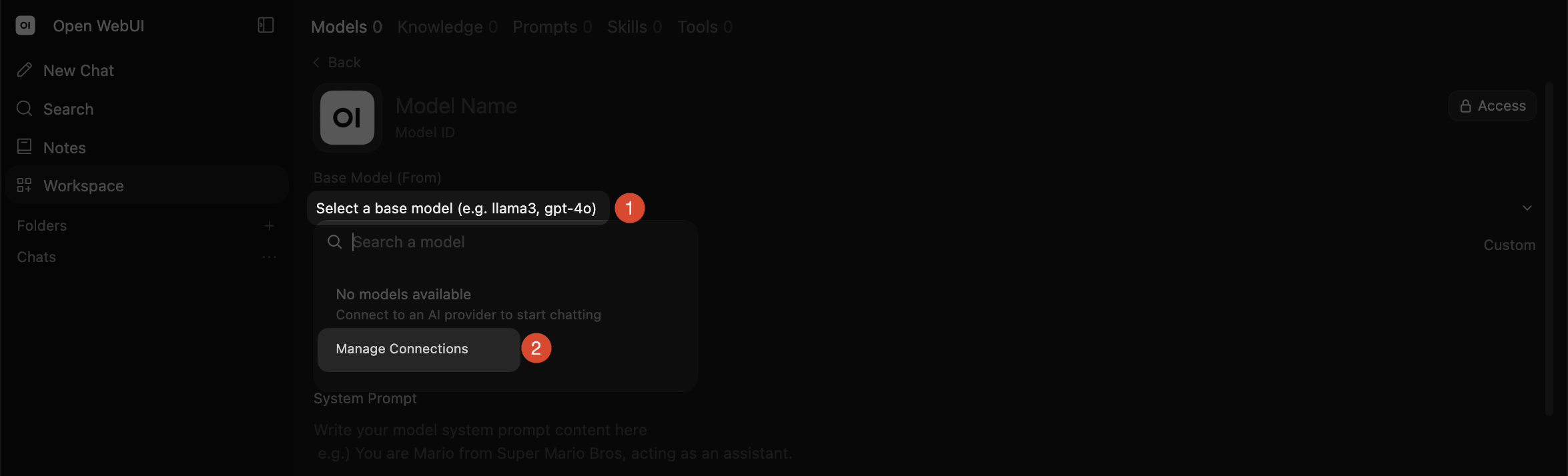
- After opening the model menu, click
Manage Connectionsin the list.
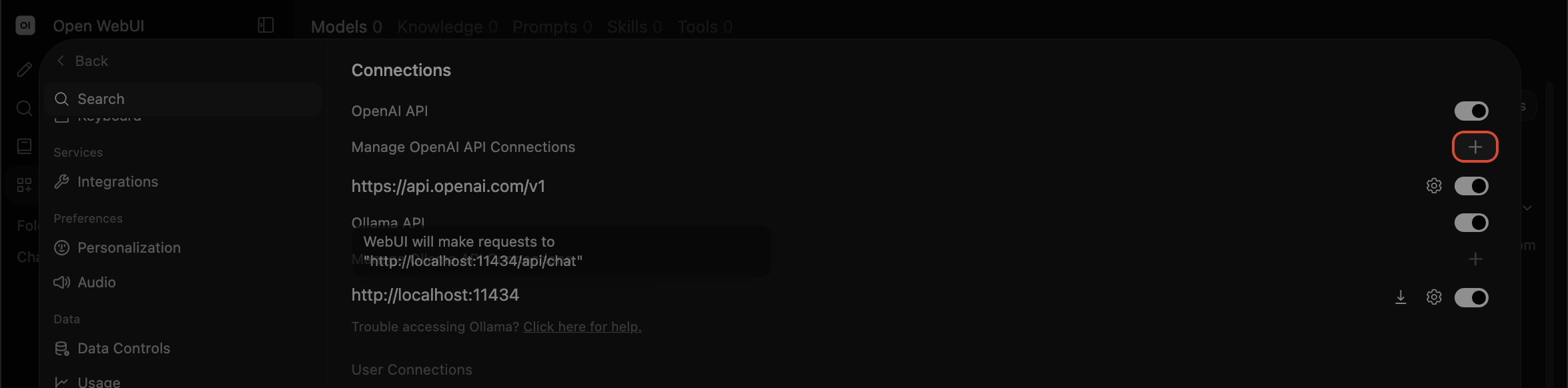
- A popup will appear — click the
+on the right to start creating a new connection.
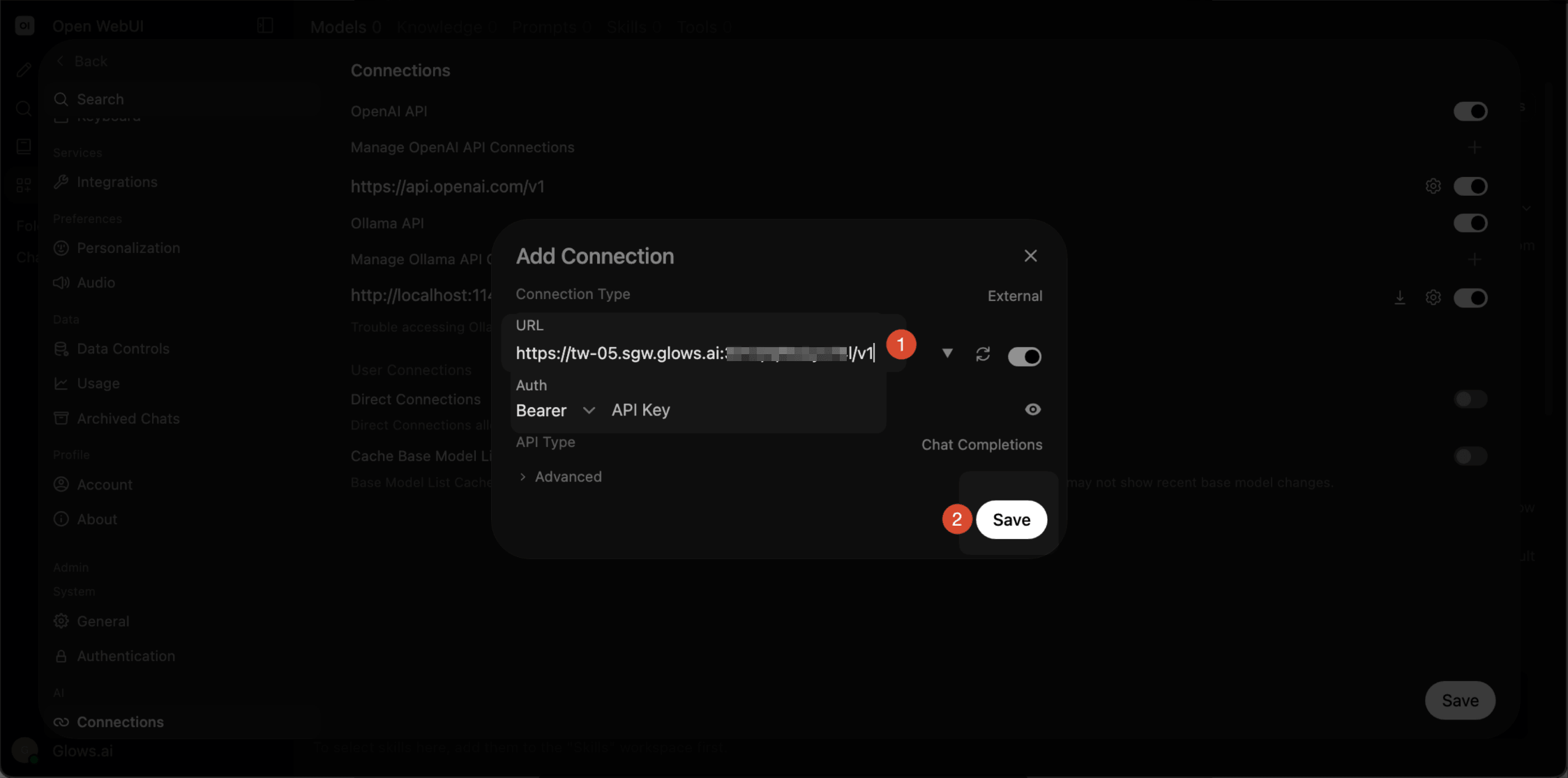
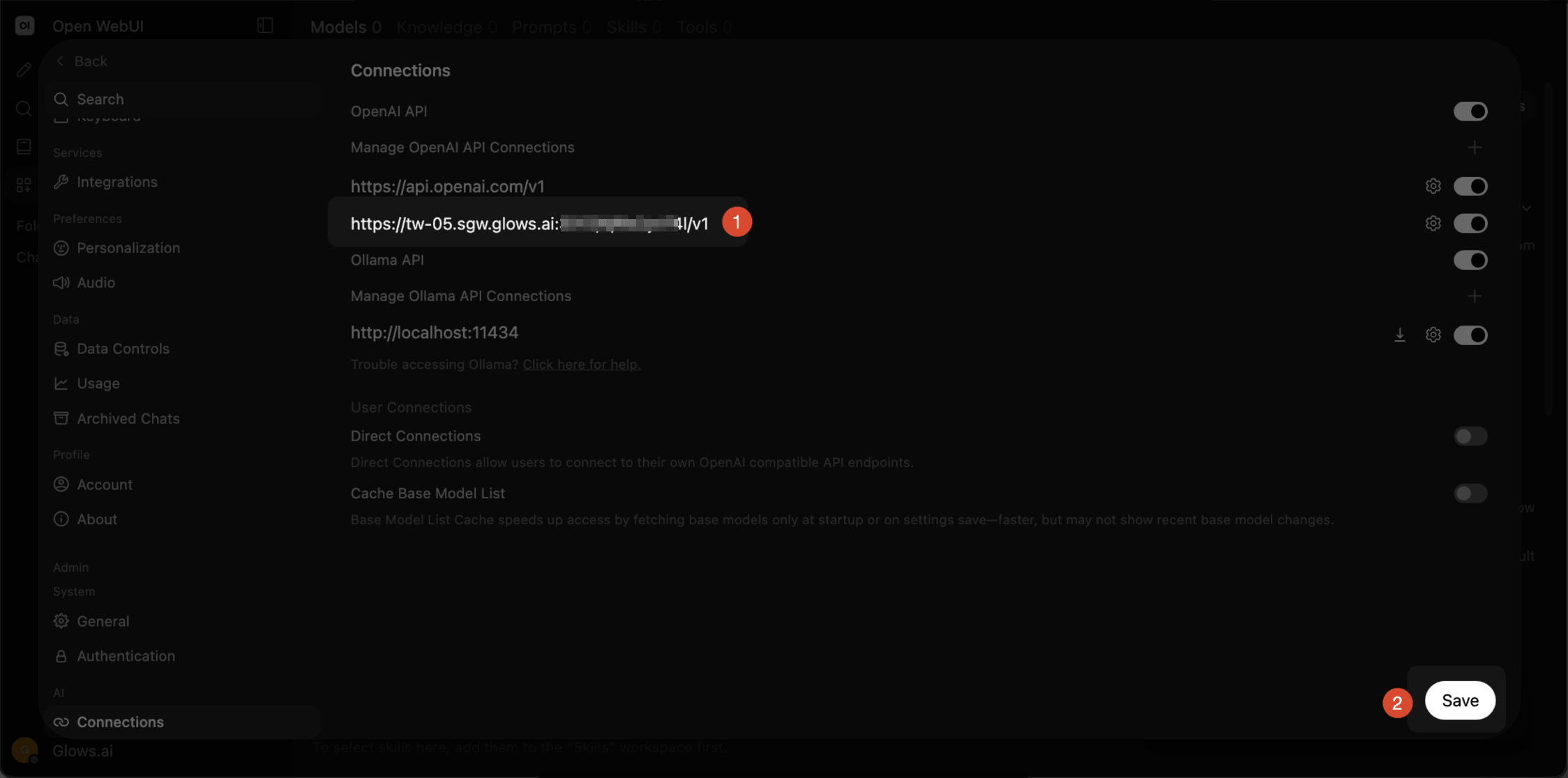
- In the URL field, paste the URL you copied from the Auto Deploy page earlier, and add
/v1at the end (for example,https://tw-05.sgw.glows.ai:0000/x/xxxxxxxx/v1), then click Save. (You can leave theAuthfield in the popup blank, since Ollama doesn't require an API key by default.)
- Once the popup form is saved successfully, you'll see the new connection you just created in the list. Confirm it, then click
Save.
Start a Conversation
- Click
New Chaton the Open WebUI home screen to start a new conversation. Click the model list on the right side of the input box and select the model you just created.
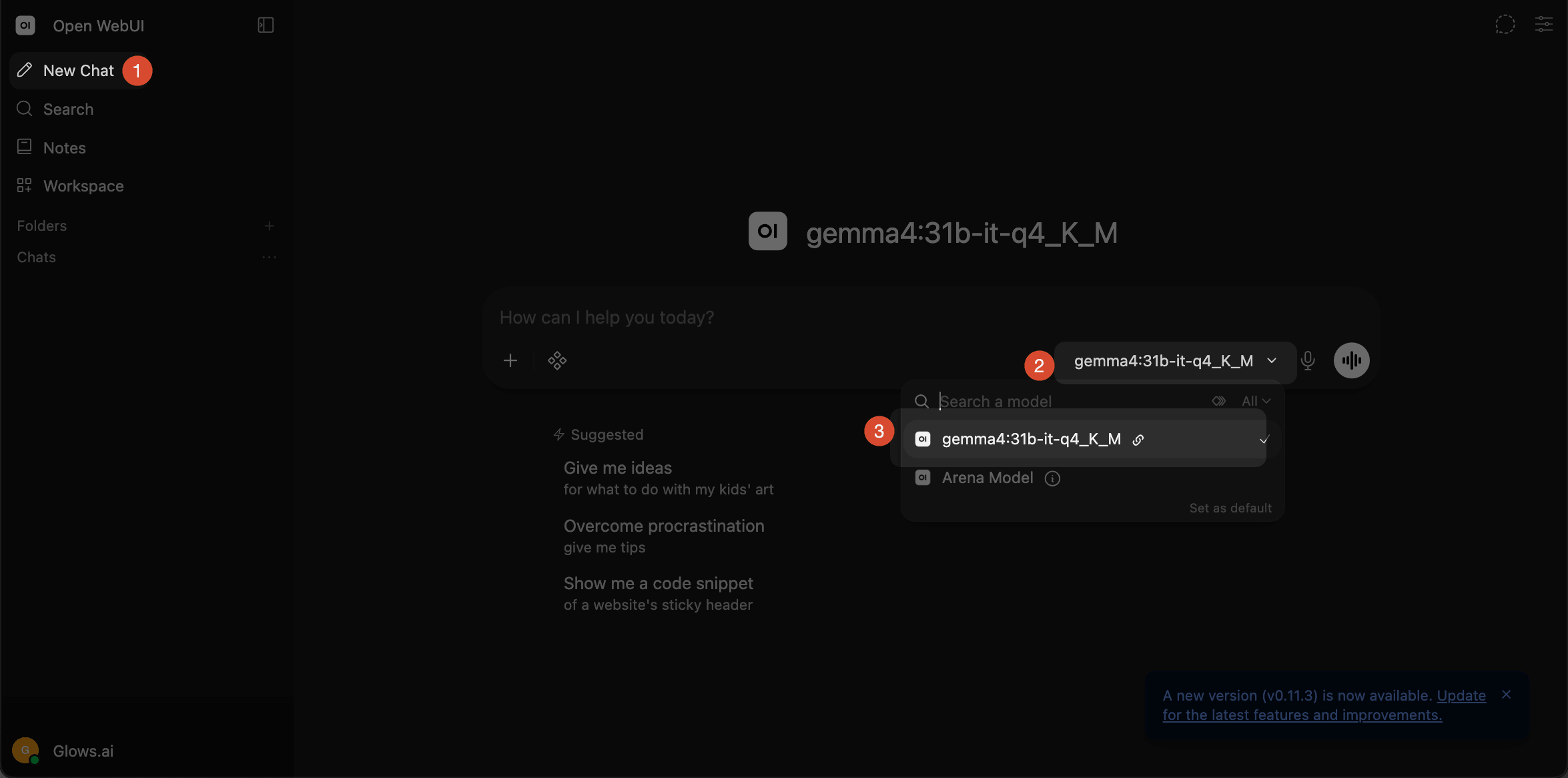
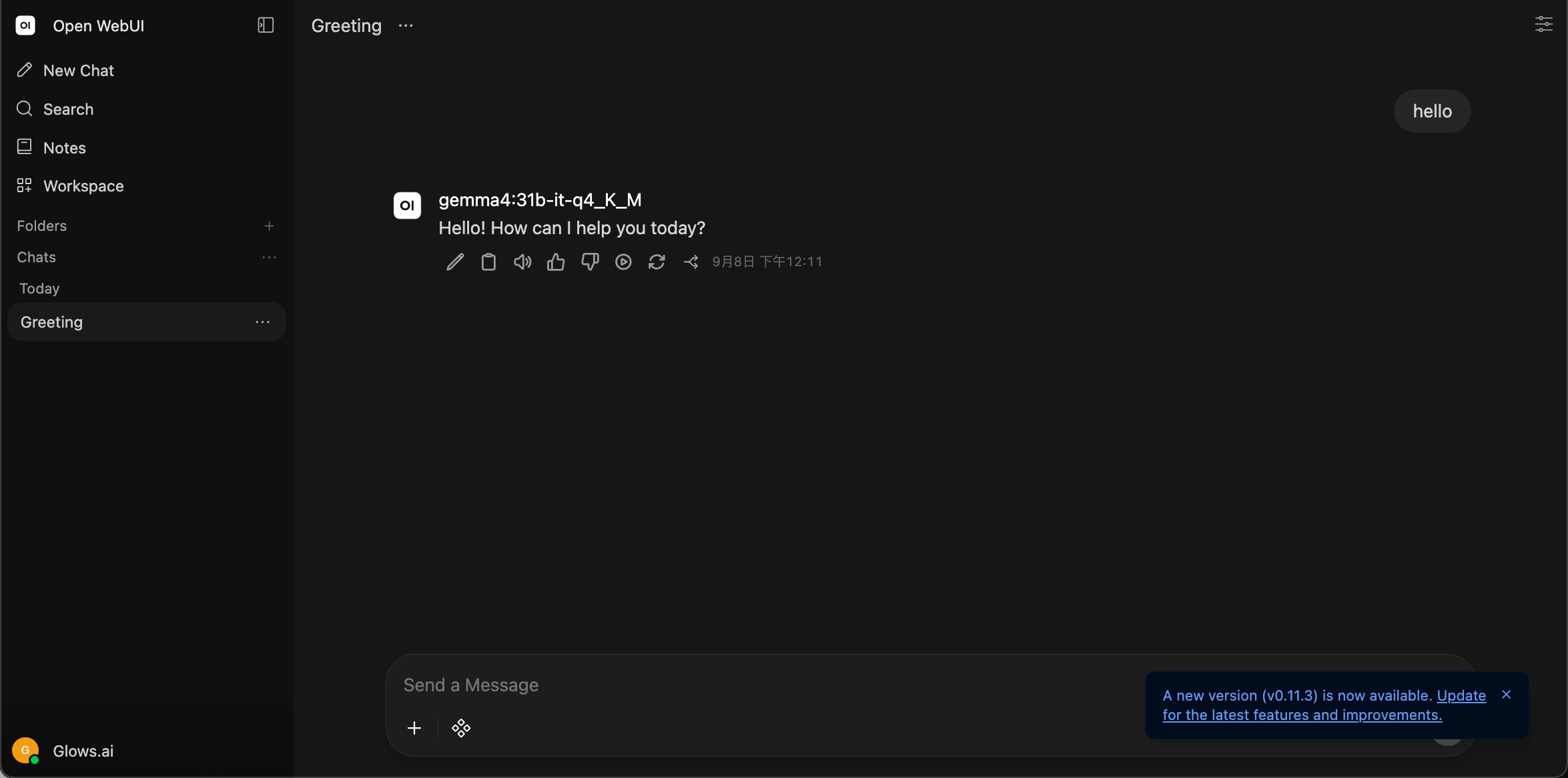
- This triggers Auto Deploy and successfully returns a reply from the local AI model running on the Glows.ai instance.
- A successful model call means the instance started successfully. Once the instance is running, it will automatically release if no new requests come in. You can set the auto-release delay when creating the Auto Deploy.
Contact Us
If you have any questions or suggestions while using Glows.ai, feel free to contact us via email, Discord, or Line.
Email: support@glows.ai
Discord: https://discord.com/invite/glowsai
Line: https://lin.ee/fHcoDgG