
How to Benchmark GPU AI Model Speed with ai-ml-gpu-bench (Tested on a Glows.ai RTX 4090)
This tutorial explains how to use the open-source tool ai-ml-gpu-bench to run several open-source large language models (LLMs) on a Glows.ai GPU instance, measure how many tokens per second they generate, and compare the results side by side with the reference data for other computers and GPUs built into the automatically generated report.
We use a Glows.ai NVIDIA GeForce RTX 4090 instance, and the whole test finishes in about 7 minutes. During testing we also found that the Ollama version and the context length setting have a very large effect on the results, so this tutorial explains how to configure them to get accurate, comparable numbers.
This tutorial covers:
- Creating an instance and configuring Ollama
- Installing ai-ml-gpu-bench
- Running the benchmark and watching GPU usage
- Reading the report and comparing with other machines
- Advanced: testing a single model
- Summary of results and recommendations
Introduction to ai-ml-gpu-bench
ai-ml-gpu-bench is an open-source AI performance benchmark. It uses Ollama to have several models answer the same question, repeats each model 3 times, records the generation speed, and finally produces an HTML report automatically.
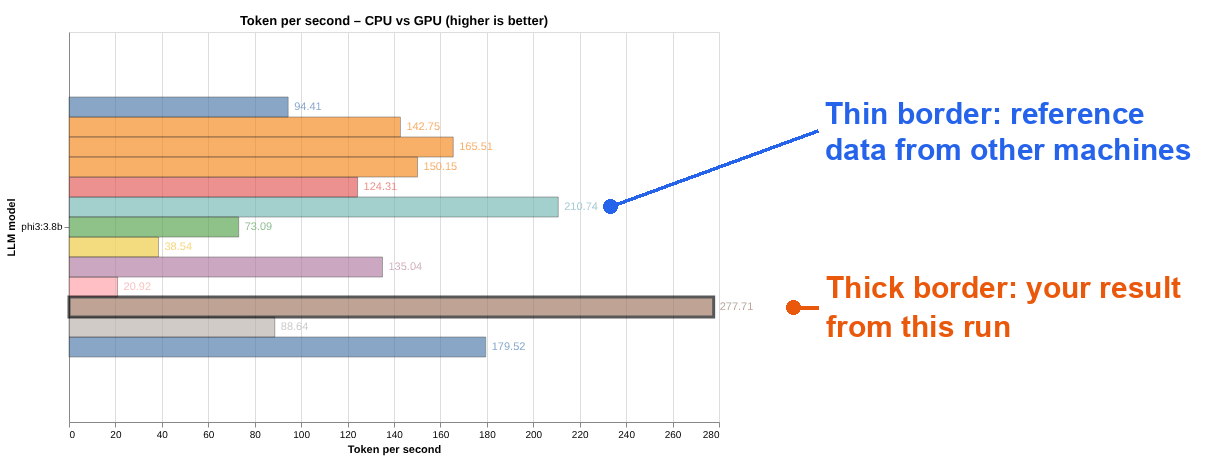
The report's highlight is its built-in reference data for many computers. Your results are shown side by side with other machines (for example, RTX 4080 SUPER, RTX 5070 Ti, and Apple M4 Pro):
- Thick-outlined bars: your results from this run
- Thin-outlined bars: reference data from other machines
If you want to estimate which models a machine can run before renting a GPU, see our other tutorial, "How to Check Which AI Models Your Machine Can Run with llmfit". ai-ml-gpu-bench, by contrast, actually runs the models once to measure real speed.
Terms used in this tutorial:
- token: the basic unit in which a model generates text
- tokens/s: the number of tokens generated per second; a higher number means faster answers
- VRAM: the memory on the graphics card; a model must fit entirely in VRAM to run at full speed
- Context length: how much content the model can process at once; the larger the setting, the more VRAM it uses
Prerequisites
- About 20 minutes of work (including model downloads)
- The RTX 4090 instance costs 0.490 Credit/h, so this tutorial needs about 0.2 Credit
Part 1: Create an Instance and Configure Ollama
1. Create an Instance
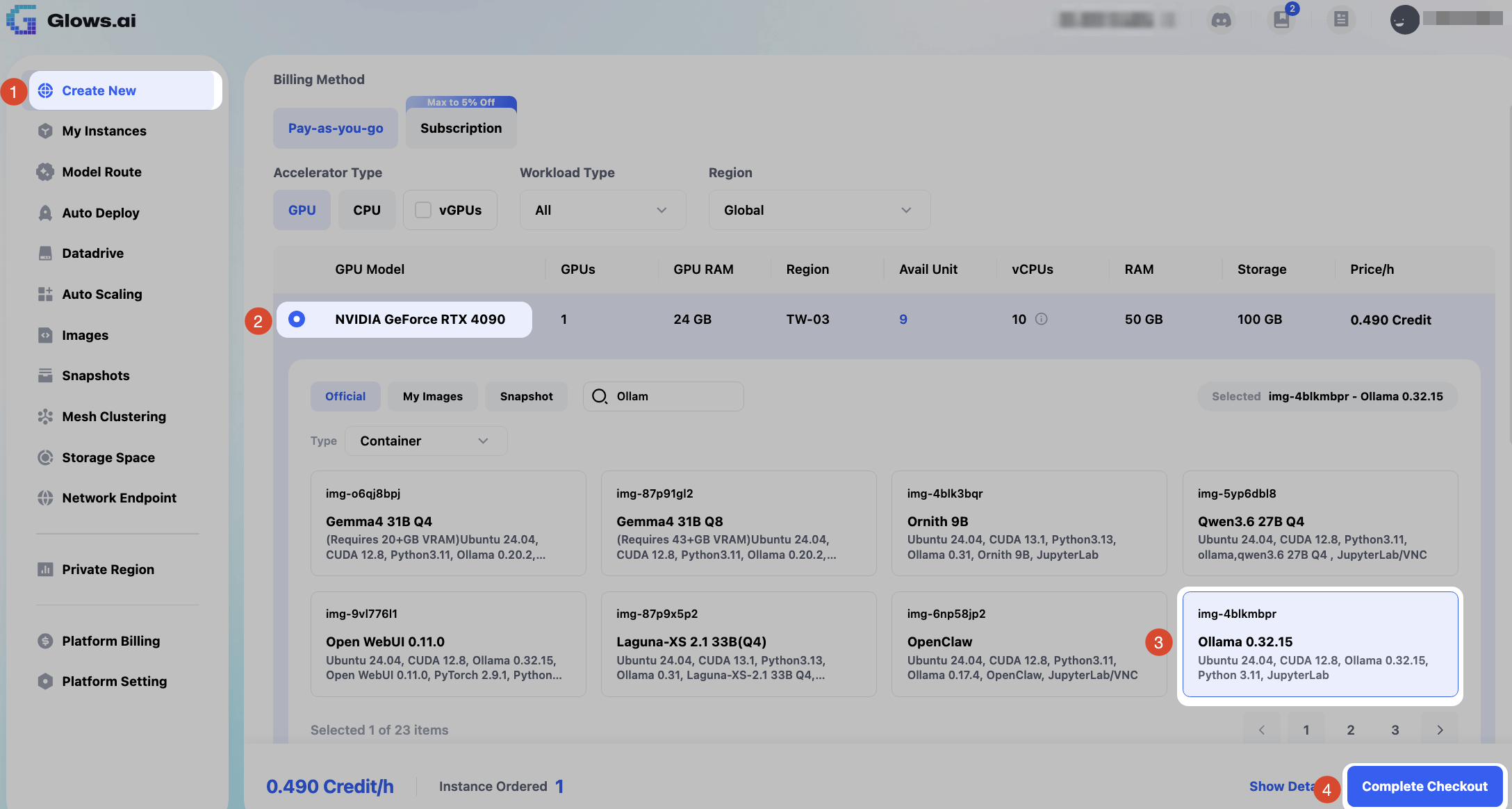
Click Create New to start creating an instance:
- For GPU Model, select NVIDIA GeForce RTX 4090 (24GB VRAM, 10 vCPUs, 50GB RAM, 0.490 Credit/h)
- Search for ollama in the Official images and select Ollama 0.32.15 (img-4blkmbpr, with Ollama and JupyterLab preinstalled)
- Click
Complete Checkoutto create the instance
2. Open a Terminal
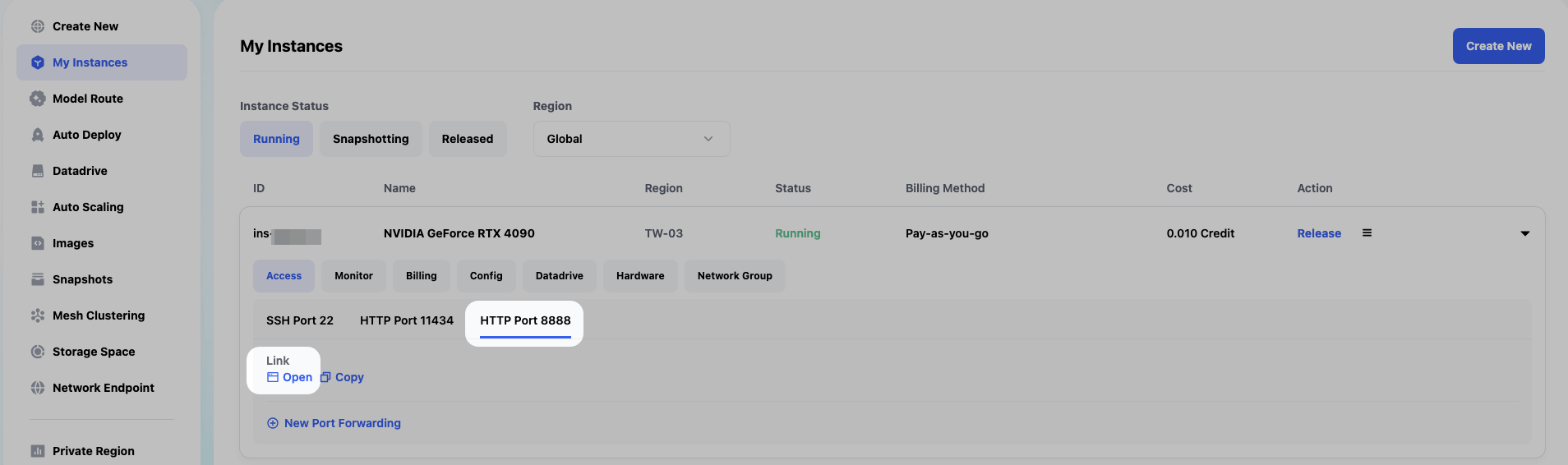
After the instance is running, click Access for the instance under My Instances, select HTTP Port 8888, click Open to launch JupyterLab, and then click Terminal to open a terminal. All commands in this tutorial are run in the terminal.
3. Install Ollama 0.24.0
Run:
curl -fsSL https://ollama.com/install.sh | OLLAMA_VERSION=0.24.0 sh
ollama --version
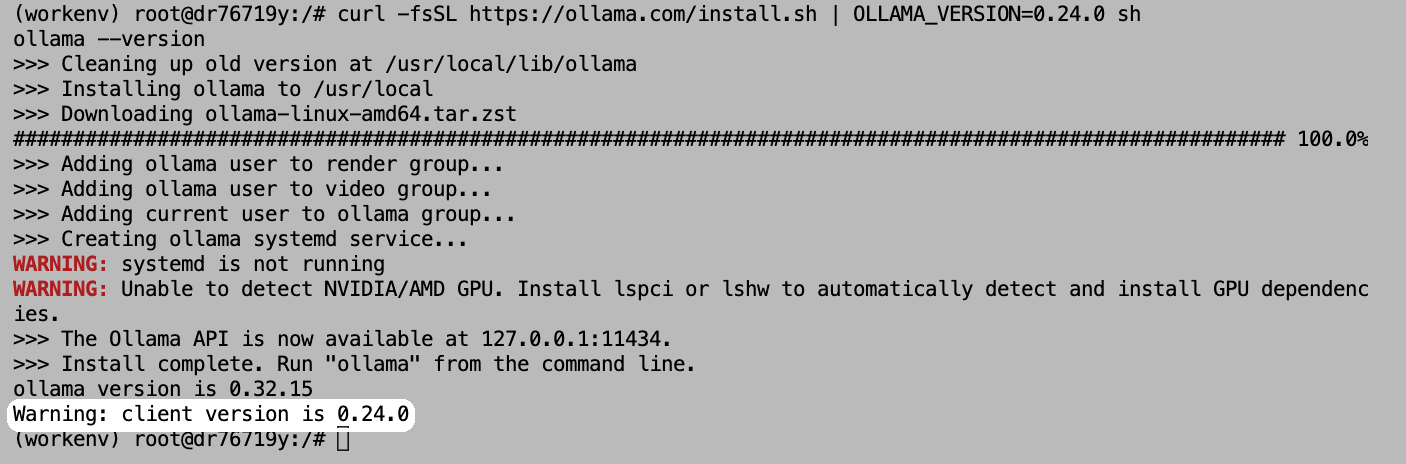
Why switch to Ollama 0.24.0? The reference data for another RTX 4090 in the report was measured with Ollama 0.24.0. With the same version, you are comparing the hardware itself. In our tests, the preinstalled 0.32.15 ran at only 30–40% of the speed of 0.24.0 (see "Part 6: Summary of Results").
The two WARNING messages on screen do not affect usage:
- systemd is not running: cloud instances have no systemd, so the installer cannot start the service automatically; we start it manually in the next step
- Unable to detect NVIDIA/AMD GPU: the installer lacks
lspci, the tool that detects GPUs; the GPU itself works normally
The last line shows client version is 0.24.0, which means the new version is installed, but the service still running in the background is the old one (0.32.15) started at boot.
4. Restart Ollama and Set the Context Length to 4K
Run:
pkill ollama
sleep 2
OLLAMA_CONTEXT_LENGTH=4096 nohup ollama serve > /root/ollama.log 2>&1 &
sleep 3
ps aux | grep "ollama serve" | grep -v grep
ollama --version
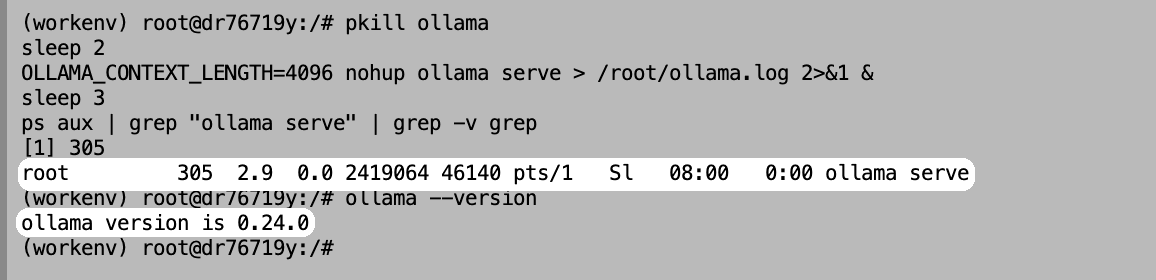
What the commands do:
pkill ollama: stops the old Ollama serviceOLLAMA_CONTEXT_LENGTH=4096: sets the context length to 4K and restarts Ollama with the new versionps aux | grep ...: confirms Ollama has started; a new PID appears on screenollama --version: shows only ollama version is 0.24.0 with no warning, which means the switch worked
Why set it to 4K? The Ollama in this image defaults to a 32K context length, and ai-ml-gpu-bench does not limit the length of the model's answer. In our tests, phi3 could not finish answering at 32K and the screen stayed on Run 1/3 for more than 10 minutes. After changing to 4K, each run took only about 3 seconds. A 4K setting also keeps the conditions the same for every test.
Note: If ollama ps still shows CONTEXT 32768 later, the setting did not take effect. Run the commands in this step again.
Part 2: Install ai-ml-gpu-bench
1. Install uv
uv is a Python management tool that automatically prepares the Python version and packages this project needs. Run:
curl -LsSf https://astral.sh/uv/install.sh | sh
source $HOME/.local/bin/env
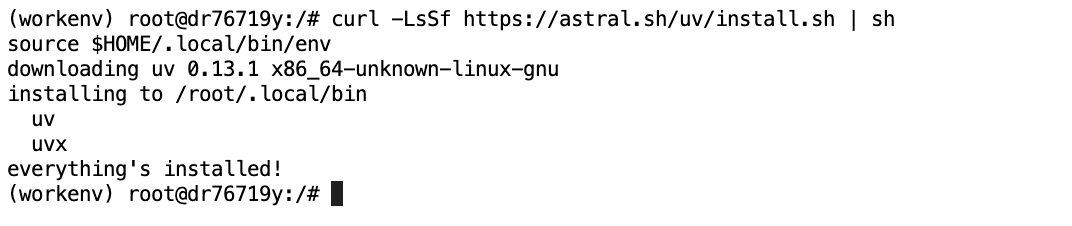
When everything's installed! appears, the installation is complete.
2. Download the Project
Run:
cd /root
git clone https://github.com/albedan/ai-ml-gpu-bench
cd ai-ml-gpu-bench
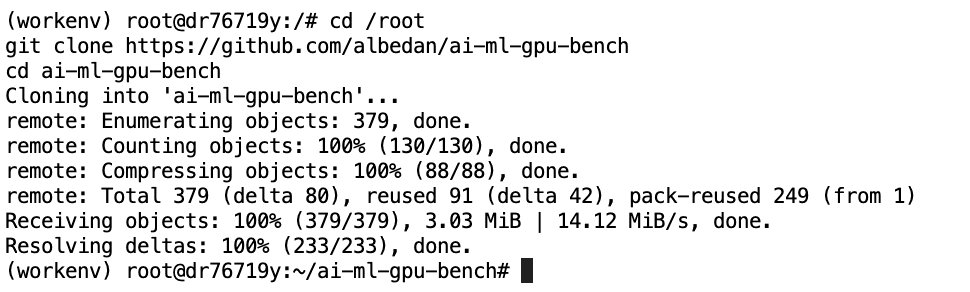
We put the project under /root so the report is easier to download from JupyterLab later.
3. Set the Test to GPU Only
Run:
cd /root/ai-ml-gpu-bench
sed -i 's/gpu_used:    \[true, false\]/gpu_used:    [true]/' ai_bench_suite.yaml
grep gpu_used ai_bench_suite.yaml

The setting is done when both lines show [true].
Why test the GPU only? By default, the tool runs each model 3 times on the GPU and 3 times on the CPU. CPU tests are very slow on cloud instances: a single run of one model took more than 10 minutes in our tests, and finishing everything would take hours. The report already contains plenty of CPU data from other machines, so you can use it to see the gap between CPU and GPU.
Note: If you run commands in a newly opened terminal tab, it starts in the root directory (/). Be sure to run cd /root/ai-ml-gpu-bench first, or you will get No such file or directory.
Part 3: Run the Benchmark
1. Start the Benchmark
Run:
uv run run_suite.py --suite ollama --fast --autopull --no-upload-results
Parameters:
| Parameter | Description |
|---|---|
--suite ollama | Runs only the LLM tests and skips the other XGBoost machine learning test |
--fast | Tests only 4 small models: phi3:3.8b, gemma4:e2b, qwen3:4b, deepseek-r1:8b |
--autopull | Downloads missing models automatically |
--no-upload-results | Keeps the results on this machine only. By default, the tool uploads results to the author's server in encrypted form |
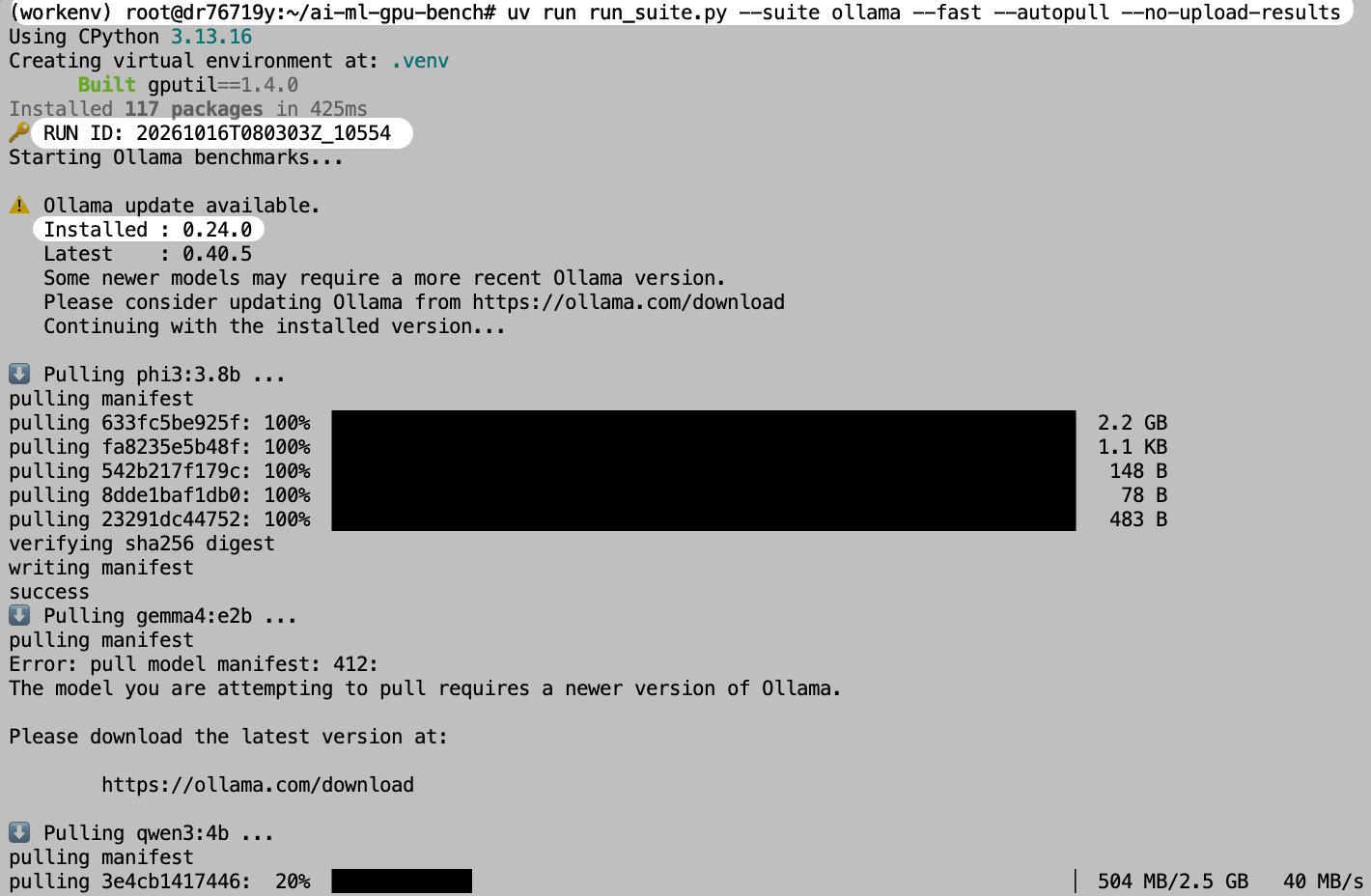
The screen shows, in order:
- uv automatically creating a Python environment (the first run takes longer)
- RUN ID: the ID of this run
- Installed : 0.24.0: confirms the Ollama version used for the test. The update available message below is just a reminder that a newer version exists and does not affect the test
- Models being downloaded automatically
When gemma4:e2b is downloaded, a 412 error appears: Gemma 4 needs a newer Ollama, and 0.24.0 does not support it yet. The tool skips this model automatically, and the other 3 models are not affected.
2. View a Single Model's Results
Each model is tested 3 times with the same question (an Italian question meaning "Please explain the difference between a camel and a dromedary"), and a results table is shown when it finishes. Here is qwen3:4b as an example:
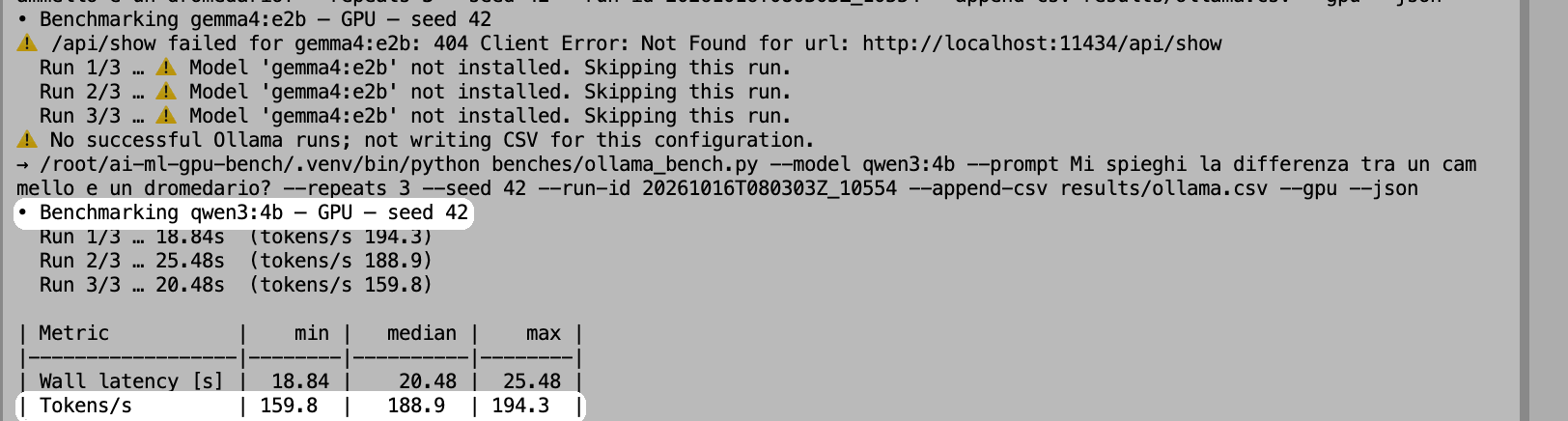
- Wall latency [s]: the total seconds taken to answer once
- Tokens/s: the number of tokens generated per second; the median of the 3 runs is used as the result
The median for qwen3:4b is 188.9 tokens/s. qwen3 and deepseek-r1 "think" before answering and generate more tokens, so one answer takes about 20 seconds, while phi3 takes only about 3 seconds.
At the top of the screen, gemma4:e2b shows not installed. Skipping this run, because its download failed in the previous step.
Below each table, detailed data is also printed as JSON. The values worth noting are:
- "context_length": 4096: the 4K context length setting took effect
- "vram_residency_pct": 100.0: the model ran 100% on the GPU
3. Confirm the Model Is Fully Loaded on the GPU
While the test is running or after it finishes, open another terminal tab and run:
ollama ps

- PROCESSOR: all show 100% GPU, so the models are fully loaded in VRAM with nothing assigned to the CPU
- CONTEXT: all show 4096, matching the earlier setting
- UNTIL: Forever means the models are not unloaded automatically after running and stay in VRAM
4. Watch GPU Usage
Open another terminal tab and run:
watch -n 1 nvidia-smi
watch -n 1 refreshes the screen every second. Press Ctrl + C to exit. If the test has already finished, run the following command in another tab to have a model answer a question:
ollama run qwen3:4b "Explain what a GPU is in about 300 words."
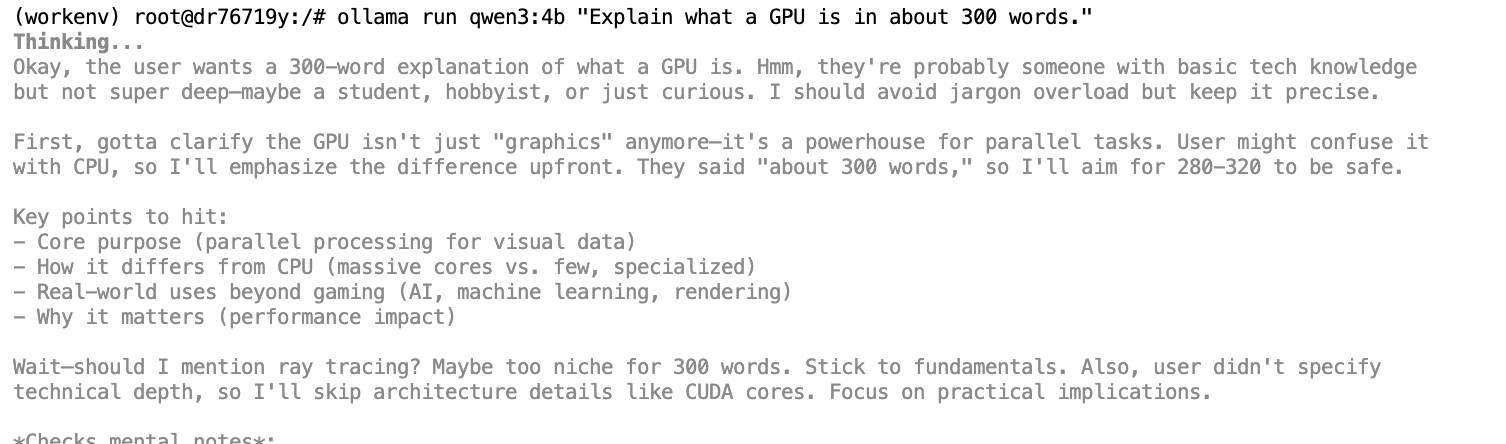
Idle versus running:
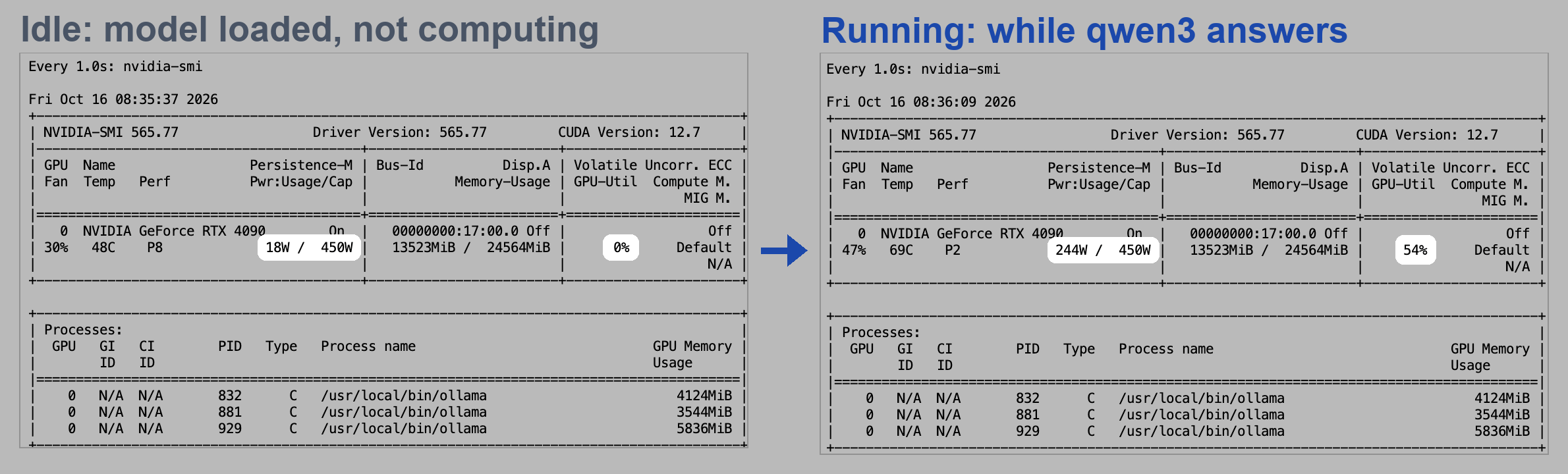
| Item | Idle (model loaded) | Running |
|---|---|---|
| GPU-Util | 0% | 54% |
| Power draw | 18W | 244W |
| Temperature | 48°C | 69°C |
Memory usage is about 13.5GB in both screens, because all 3 models stay in VRAM. GPU-Util not reaching 100% is not a problem: small 4B-class models put little load on an RTX 4090. When evaluating performance, still go by tokens/s.
5. Test Complete

The whole test finishes in about 7 minutes 20 seconds. When HTML creato (Italian for "HTML created") appears at the end, the report has been generated.
Part 4: Read the Report
1. Download the Report
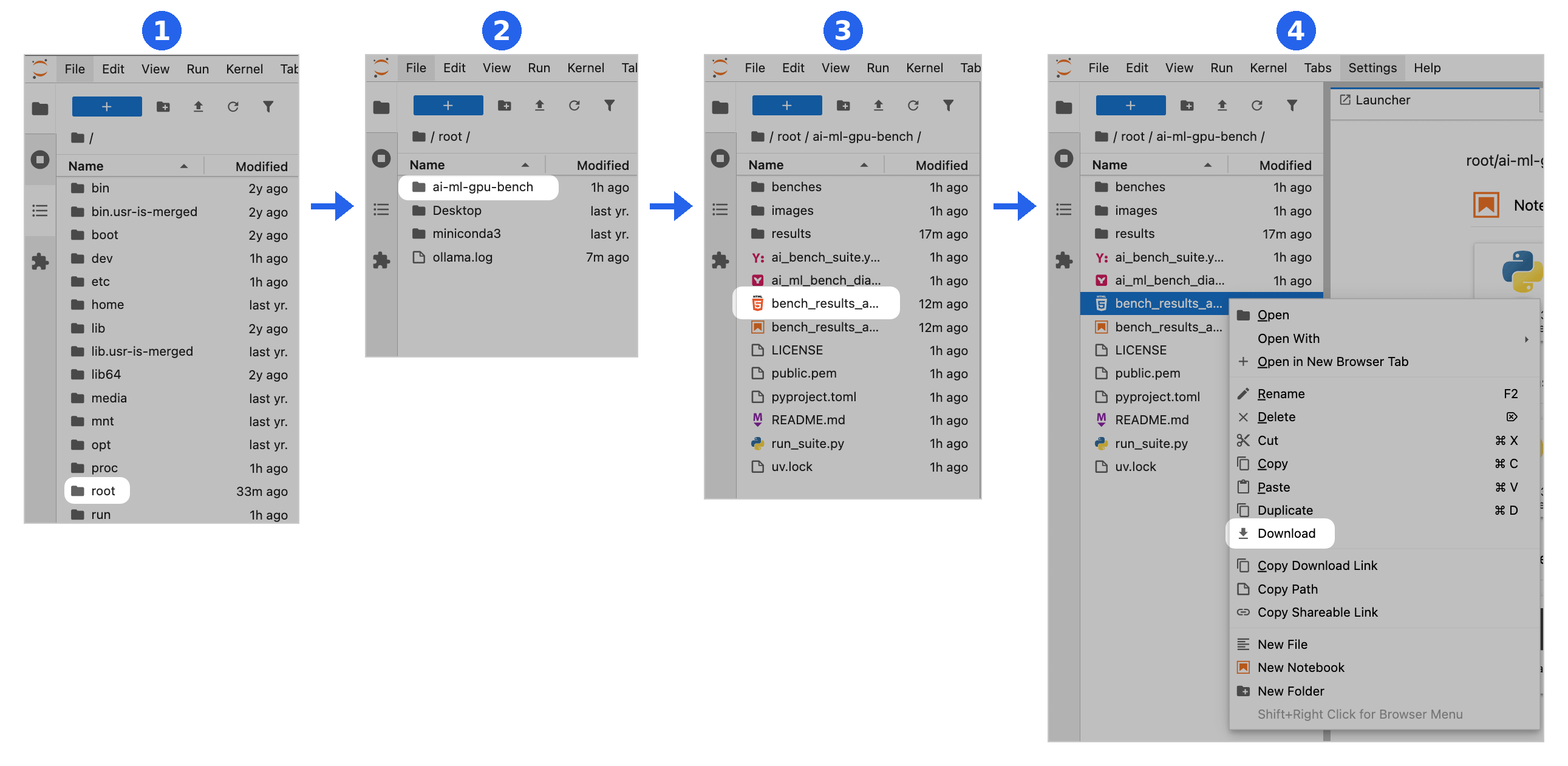
The report is at /root/ai-ml-gpu-bench/bench_results_analysis_altair.html. A cloud instance has no display, so the report does not open automatically. Download it to your own computer to open it.
In the JupyterLab file list on the left, click root → ai-ml-gpu-bench, right-click bench_results_analysis_altair.html, and select Download:
2. Report Summary
Open the report in a browser. The summary of this run is at the top:
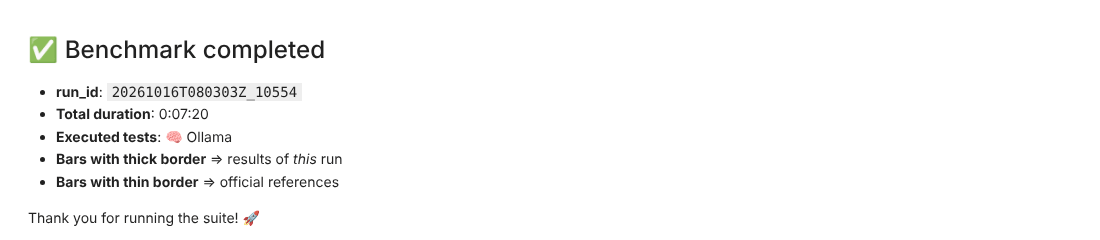
The report then has two charts:
- Training time: the results of the XGBoost machine learning test. We did not run this test, so the chart shows only data from other machines and can be skipped
- Token per second: the results of the LLM tests, which are the focus of this tutorial
The Token per second chart contains every machine and model, so there are a lot of bars. Use the filter menus below the chart to show only the items you want to compare.
3. Compare with Another RTX 4090
Filters: select NVIDIA GeForce RTX 4090 for GPU and GPU for GPU used.
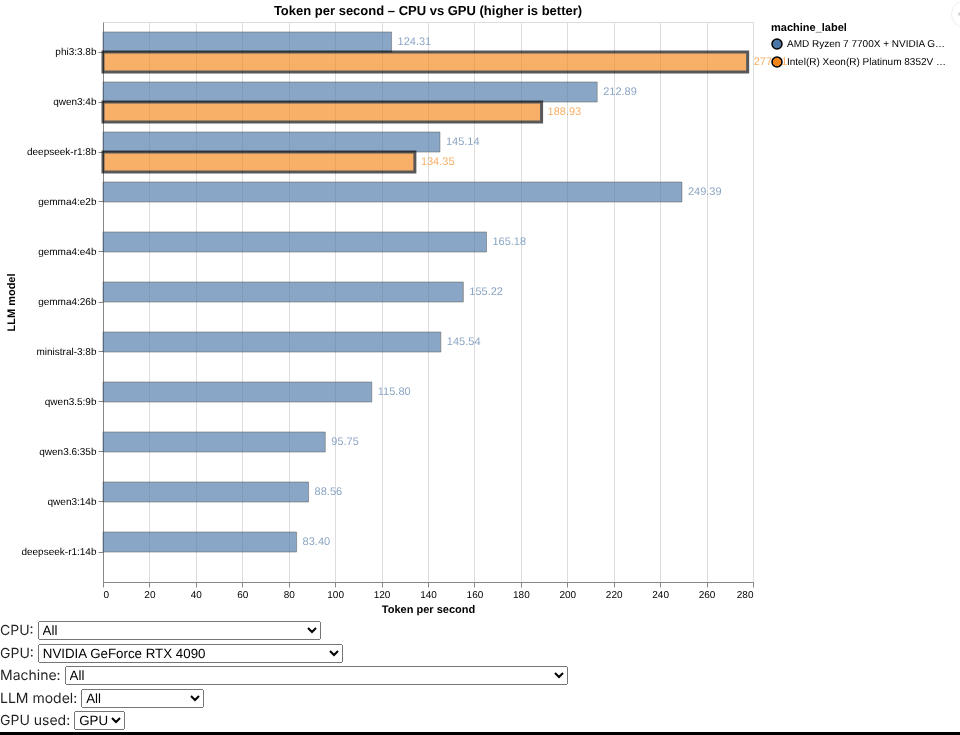
The thick orange outline is this Glows.ai instance (the legend shows Intel(R) Xeon(R) Platinum 8352V, which is the instance's CPU model). The thin blue outline is the reference data for another RTX 4090 in the report (AMD Ryzen 7 7700X + RTX 4090, also using Ollama 0.24.0). The value for phi3 is 277.71:
| Model | Glows.ai RTX 4090 | Reference RTX 4090 |
|---|---|---|
| phi3:3.8b | 277.71 | 124.31 |
| qwen3:4b | 188.93 | 212.89 |
| deepseek-r1:8b | 134.35 | 145.14 |
(Unit: tokens/s)
qwen3 and deepseek-r1 reach about 90% of the reference data, and phi3 is more than twice as fast, so overall the two are at the same level.
4. Compare with Other Machines: phi3
Filters: select phi3:3.8b for LLM model and GPU for GPU used.
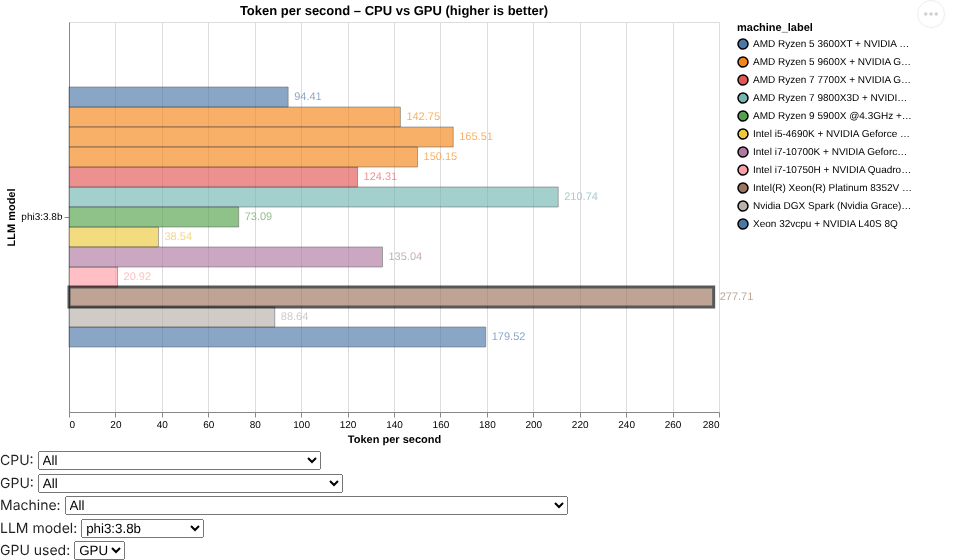
The thick-outlined brown bar (Intel(R) Xeon(R) Platinum 8352V) is this Glows.ai RTX 4090. Among all machines that uploaded phi3 GPU data, 277.71 tokens/s is the fastest, ahead of the second-place RTX 4080 SUPER (210.74).
Note: Machines do not necessarily use the same Ollama version and settings. For example, we set the context length to 4K here, so the gaps do not purely reflect hardware differences.
Part 5: Advanced: Test a Single Model
If you only want to test one model, you do not need to run the whole suite. Using phi3 as an example, run:
cd /root/ai-ml-gpu-bench
.venv/bin/python benches/ollama_bench.py --model phi3:3.8b --prompt "Mi spieghi la differenza tra un cammello e un dromedario?" --repeats 3 --seed 42 --gpu

It finishes in about 10 seconds with a result of 278.3 tokens/s, within 1% of the 277.7 from the full suite, which shows the results are very stable. This method does not write test results or change the report that was already generated. You can replace the name after --model with any other model you have downloaded.
Part 6: Summary of Results
1. Test Results
| Model | Generation speed (tokens/s) | Time per answer | VRAM load |
|---|---|---|---|
| phi3:3.8b | 277.71 | 3.01 s | 100% GPU |
| qwen3:4b | 188.93 | 20.48 s | 100% GPU |
| deepseek-r1:8b | 134.35 | 11.85 s | 100% GPU |
| gemma4:e2b | — (not supported by Ollama 0.24.0) | — | — |
Test environment: Glows.ai RTX 4090 instance, Ollama 0.24.0, 4K context length. All values are the median of 3 runs.
2. The Effect of the Ollama Version
During testing, we also ran the same suite with Ollama 0.32.15, and it was clearly slower:
| Model | Ollama 0.32.15 | Ollama 0.24.0 | Difference |
|---|---|---|---|
| phi3:3.8b | 81.70 | 277.71 | 3.4x |
| qwen3:4b | 62.46 | 188.93 | 3.0x |
| deepseek-r1:8b | 52.73 | 134.35 | 2.5x |
(Unit: tokens/s. Both runs used an RTX 4090 instance of the same specification with a 4K context length.)
Here are the reports from the two runs side by side (filters for both: GPU: NVIDIA GeForce RTX 4090, GPU used: GPU). In the left chart, which uses 0.32.15, every thick orange bar is shorter than the blue reference bars. In the right chart, after switching to 0.24.0, the speeds are on par with the reference data:
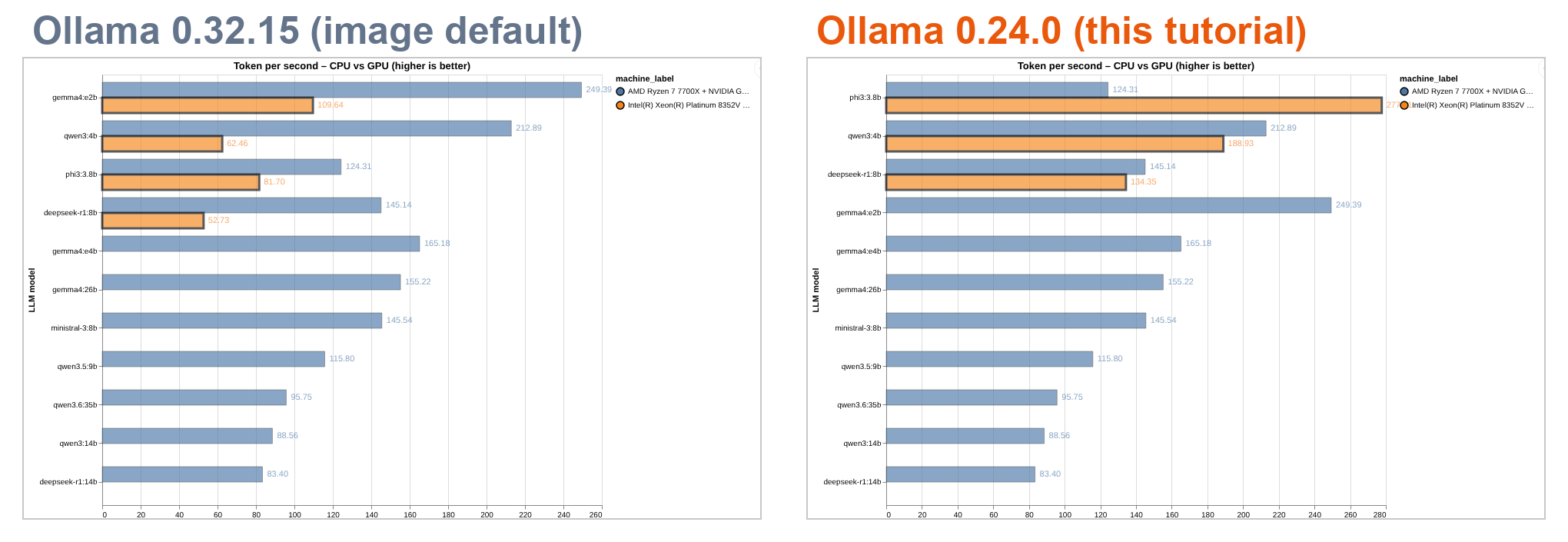
With the same GPU, the Ollama version alone made a 2.5x to 3.4x difference in speed. When comparing with other machines, first check that both sides use the same Ollama version. Otherwise you are comparing software versions, not hardware.
3. Recommendations
- Check the Ollama version first: before comparing numbers, confirm the version with
ollama --version. The comparison is fair only if it matches the reference data's version - Fix the context length: set it with
OLLAMA_CONTEXT_LENGTHso a model does not fail to stop because of an overly large default - Test the GPU only at first: CPU tests are extremely slow on cloud instances, so use the CPU data from other machines in the report instead
- Go by tokens/s: a higher GPU-Util is not necessarily better; it is normal for a small model not to use up the full power of an RTX 4090
Contact Us
If you have any questions or suggestions while using Glows.ai, feel free to contact us via email, Discord, or Line.
Email: support@glows.ai
Discord: https://discord.com/invite/glowsai
Line: https://lin.ee/fHcoDgG